Over the past few years, gas prices have experienced significant fluctuations. After reaching multi-year highs in the first half of 2022, with the national average peaking at about $5 per gallon, prices have shown a general downward trend. Looking ahead, forecasts suggest a continued decline in gas prices. The U.S. Energy Information Administration forecasts that retail prices for regular-grade gasoline will decrease to an average of about $3.09 per gallon in 2024.
So, is it time for a road trip? Maybe... Gas price trends are influenced by various factors, including global oil production, regional supply and demand, and geopolitical events. It's also noteworthy that prices tend to be higher on the West Coast, particularly in California, due to state taxes and environmental regulations.
Here are 5 apps and websites to help save money on gas on your next road trip:
Upside: Upside offers up to $0.25 off per gallon on gas in select states and provides cash-back offers on groceries and at restaurants. Users can save by paying with a card and then uploading a receipt to receive cash back via PayPal or check.
Waze: Known as a navigation app, Waze also helps users find the cheapest gas prices along their route. It includes features for setting preferred gas stations and types, and can direct users to stations offering "Waze-only" deals.
Gas Guru: This app shows cheap gas prices from the Oil Price Information Service, ensuring up-to-date information. Users can save their favorite locations for easy access to the best prices near them or compare prices close to home, work, or other spots.
AAA TripTik Travel Planner: This app not only helps you find gas stations with the best prices but also aids in planning road trips with up to 25 stops. Even non-members can use the trip planning and gas-finding features.
GasBuddy: In addition to helping you find the cheapest gas prices near you, GasBuddy has a handy trip cost calculator. And, if you use their prepaid card, you can save up to $0.25 per gallon.
Each of these apps offer a range of features for finding the best gas prices, earning cash back, and planning fuel-efficient routes. By leveraging these tools, you can make more informed decisions and potentially save a significant amount of money on fuel expenses.
Also, consider these tips and strategies to save money on gas during road trips:
Proper Tire Inflation: Keeping tires properly inflated can enhance fuel efficiency. A single tire under inflated by 2 PSI, can increase fuel consumption.
Membership Clubs: Joining warehouse clubs like Sam’s Club or Costco can offer access to lower gas prices.
Reduce Car Load: Lightening your vehicle by removing unnecessary items, especially heavy ones, can improve gas mileage.
Fuel Efficiency Habits: Avoid aggressive driving (high speeds, accelerating and braking hard), excessive idling, and maintain steady speeds. For example, if you anticipate being stopped for several minutes, shut off the car. Restarting the car uses less fuel than letting it idle for this time.
Keep Windows Closed & Use AC Sparingly: Windows open, especially at highway speeds, increase drag and result in decreased fuel economy. Similarly, when the air conditioner is on it puts extra load on the engine forcing more fuel to be used.
Plan Your Route: Use trip planning tools to find the most fuel-efficient routes and to locate gas stations with the best prices along the way
January 6, 2024. Photo by Sergey Tarasov (Unsplash).
In recent years, it's become increasingly popular for pet owners to bring their furry companions along on their journeys. The American Pet Products Association reports that over 37% of pet owners traveled with their pets in 2022, marking a notable increase from previous years. This surge in pet-inclusive travel has prompted airlines, hotels and others travel providers to reevaluate and expand their pet-friendly policies.
From in-cabin flight options for small animals to pet-friendly rooms and amenities at hotels, the industry is adapting to meet the needs of this growing segment of travelers. Below is a summary of some key elements of pet travel policies across major airlines and hotel brands including the fees for bringing pets along with you.
Personally, I'm a bit surprised at this phenomenon. Perhaps that's because of my No Pets Allowed lifestyle and homestead. I adore visiting my parents' dog and treat her as if she's my own kin, but not sure I love the idea a flight or hotel full of pets. Sounds too much like a Gary Larsen cartoon in living, panting, barking color. Please don't hold that against me. And, while it may not be popular opinion, there are several reasons why you shouldn't fly with pets that are worth considering.
Pet policies at hotels can vary widely, each brand and property having specific guidelines and fees:
Marriott Hotels: Marriott offers over 1,500 pet-friendly hotels across the U.S., but the policies, including pet fees and weight limits, vary from property to property. Most of their pet-friendly hotels allow domesticated dogs, cats, and, yes, birds, and fish. Notably pets are welcome at all Residence Inns, TownePlace Suites, and Element by Westin locations. Marriott makes it easy to search specifically for pet-friendly hotels and resorts.
Wyndham Hotels: Wyndham's pet policy also varies by location. The standard policy at Days Inn by Wyndham welcomes one or two pets of any size, with fees ranging from $0 to $50 per night. Similarly, Super 8 by Wyndham generally allows two pets up to 50 lbs for a fee of up to $50 per pet, per night.
InterContinental Hotels (IHG): Not all IHG properties are pet-friendly, and their policies, including pet fees and weight limits, differ by location. However, pets are welcome at all Candlewood Suites, Staybridge Suites, and Kimpton Hotels. Candlewood Suites typically charges a non-refundable fee based on the length of stay, with fees up to $75 for 6 nights and $150 for longer stays.
Choice Hotels: Generally, Choice Hotels allows two dogs per room, subject to specific weight restrictions and fees (ranging from $10 to $75 per pet, per night). For instance, Comfort Inn & Suites and Quality Inn's pet policies welcome up to two pets, with weight and breed restrictions, and charge a nightly fee per pet.
Hyatt Hotels: Hyatt allows a maximum of two pets per room, with weight restrictions typically at 50 pounds. The pet policy and fees vary across different properties. For example, Hyatt Place locations welcome two dogs with a combined weight up to 75 lbs for a fee of $75 for stays up to six nights and $175 for longer stays.
Pet policies and fees of the 5 largest U.S. airlines:
Alaska Airlines: Alaska offers a couple options for what they call "Fur-st Class Care". Pets can travel in the passenger cabin for a fee of $100 each way. This is subject to space availability, plane size, and restrictions specific to travel to Hawaii and international destinations. For those preferring to have their pets in the climate-controlled baggage and cargo compartments, Alaska charges a fee of $150, or $100 for specific categories like travel within Alaska, active duty U.S. Military, or U.S. Military dependents on travel orders. In terms of cabin accommodation, Alaska can accommodate one pet in first class and five in the main cabin, with the requirement that pets must remain inside their carriers at all times during the journey.
American Airlines:American's pet policies restrict in-cabin pet travel to cats and dogs only. Each passenger is allowed to bring up to two pets that are at least 8 weeks old and do not exceed 100 lbs including the carrier. The in-cabin/carry-on pet fee is $125 one-way, and the pet plus container must weigh no more than 20 lbs combined. For pets traveling in the cargo area or as checked baggage, the fees vary and are confirmed at the time of booking.
Delta Airlines:Delta's pet policies permit small dogs, cats, and household birds in the cabin for select destinations. All pets must fit into a pet carrier and meet age requirements depending on the type of travel: at least 10 weeks old for domestic travel, 16 weeks old if traveling to the U.S. from another country, and 15 weeks old for travel to the EU. The carry-on pet fee is $95 per kennel for travel to or from the U.S., Canada, Puerto Rico, or the U.S. Virgin Islands, and $200 for international flights. However, for certain destinations, pets must travel as cargo and cannot be brought into the cabin.
Southwest Airlines:Southwest's pet policies allows small domestic cats and dogs that are at least 8 weeks old to travel in-cabin under the seat in front of you. The pet fare on Southwest Airlines is $95 per one-way per pet carrier. It’s important to note that pets must remain inside their carriers throughout the flight.
United Airlines: United offers detailed rules and recommendations for traveling with pets. The fee for this service is $125 each way for domestic flights and $200 for international flights. To travel with United, pets must be at least 2 months old for domestic flights and 4 months old for international flights. Unfortunately, United does not allow pets to travel in the cargo hold.
In summary, while all the leading hotels and airlines offer pet-friendly options, the fees, weight limits, and the types of pets allowed vary significantly. To avoid any confusion or issues while traveling, it's important to confirm the specific pet policy of your planned hotel and airline well in advance.
Renting a car? Leading car rental companies, including Hertz and Avis, typically have pet-friendly policies that allow customers to travel with their pets. These policies usually permit pets in vehicles without additional fees, but they place the responsibility for any damage caused by the pet on the renter. For instance, Hertz welcomes pets in their cars and allows them to be added to the reservation in advance. Most car rental companies require that vehicles be returned clean and free of pet hair and odors to avoid cleaning fees, which can be substantial (up to $450 in the case of Avis). It's important to note that while these policies are generally consistent across company locations, there have been instances of individual locations not fully complying with the corporate policies.
Staying at a vacation rental home? If you're renting a vacation home on Airbnb, VRBO or similar, the pet policies are typically at the hosts' discretion. Airbnb permits hosts to detail their pet policies in the “house rules” section of their listing and allows them to charge a one-time cleaning fee for pets. Service animals are an exception, as they must be accepted by hosts in most circumstances. Similarly, VRBO mandates the acceptance of service animals in all properties in the U.S., regardless of the host's pet policy. For non-service animals, guests can filter for pet-friendly properties on VRBO, but they should be aware of any additional fees or specific rules set by the host. In both platforms, the flexibility in pet policies means that guests traveling with pets need to review individual listing details to ensure compliance with the host's requirements. For example, our friend Dave R. shared his experience traveling with their dog: "We took our dog (mid-sized black lab) with us for extended family vacation on Oregon coast. It was fun being able to play with the dog on the beach and not to have to pay for putting her in the kennel. The downside is that when we went out for meals, we had to leave her in her crate for long periods of time as required by the landlords which didn't make her very happy."
Looking for pet-friendly destinations and activities?BringFido maintains a directory of 10s of thousands of pet-friendly activities, events and restaurants around the world.
Shopping for pet-travel gear and accessories? Finally, as it's holiday season, if you're looking for a gift for your pooch, check out Rover's Travel Store which is full of great products for your next trip.
Parents can spoil themselves when traveling with infants or toddlers by renting baby supplies, such as cribs high chairs and strollers, rather than lugging them through airports or hassling with them en route.
Here are a few companies that rent baby supplies for travelers:
BabyQuip: This company offers a wide range of baby equipment for rent, including cribs, strollers, car seats, toys, and more. They ensure all items are safe by monitoring them for recalls and expirations. BabyQuip provides services such as delivery, setup, and pick-up, making it convenient for traveling families.
Traveling Baby Company: Offering a range of baby gear rental services, this company makes it easy for parents to access items such as cribs and strollers for a hassle-free trip. They operate in 37 U.S. cities and states, including popular destinations like Anaheim/Disneyland, Miami, Orlando, and Puerto Rico. They also provide options for self pick-up and drop-off.
Baby's Away: Operating in over 90 locations throughout the USA, Baby's Away provides clean and quality baby gear like cribs, car seats, strollers, high chairs, and toys. They have been in the business for over twenty-five years, catering to families traveling to various major resorts and other destinations in the U.S.
While it may not solve all your problems ("Are we there yet?"), these companies offer a practical and stress-reducing way for parents to travel with young children, ensuring that the necessary baby gear is readily available at their destination.
Group rates at hotels can offer several benefits, including:
Cost Savings: Hotels often, but not always, offer discounted rates for groups as an incentive to book multiple rooms. The terms and rates for groups are typically negotiable, allowing customization to meet the group's needs.
Room Blocks: Hotels can set aside a block of rooms for a group, ensuring that everyone is accommodated at the same location. This is especially helpful for events like weddings and reunions.
Flexible Payment Options: For group bookings, hotels may offer flexible payment options, such as individual payments by group members or a single invoice for the entire group.
Additional Amenities and Services: Groups may receive additional amenities and services as part of their booking, such as complimentary meeting spaces, upgraded rooms for organizers, or welcome gifts.
For more details, our Group Reservation Guide includes additional insights, a list of group reservation myths, and tips for speedy group reservations.
To help you get started, here are links to group booking resources for the six largest U.S. hotel chains:
Marriott: With more than 7,000 properties worldwide, Marriott is one of the largest hotel chains in the world. Its diverse portfolio caters to different market segments, ranging from luxury to budget. This includes The Ritz-Carlton and St. Regis brands for high-end accommodations, Sheraton and Westin for mid-range options, and SpringHill Suites and Four Points for budget-conscious travelers. Residence Inn is an excellent choice for groups, offering in-suite kitchens that can help save on meal costs. Marriott’s group booking website makes it easy to explore group options across its 30 hotel brands.
Hilton: Hilton's portfolio of hotel brands also encompasses a range of offerings from luxury to economy. Its top brands include Hampton, Homewood Suites, Hilton Garden Inn, and DoubleTree, but it also features luxury properties such as The Waldorf Astoria Hotels. Hilton’s group tools make it easy to book room blocks of 10 to 25 rooms directly online and share lodging details with your group. Additionally, they offer custom websites for all events at Hilton hotels, giving attendees the flexibility to reserve their own rooms within the block, at their convenience, and at the group rate.
Wyndham: Wyndham Hotels' portfolio, consisting mostly of economy and midscale hotel brands, includes Super 8, Days Inn, Ramada, Howard Johnson, and Travelodge. Many of Wyndham’s brands are known for being family-friendly and offering competitive rates. Their group booking site makes it easy to search their properties and submit group booking requests.
InterContinental: InterContinental Hotel (IHG) offers a range of popular hotel brands serving travelers from the luxury to the economy market. Their brands include Holiday Inn, Crowne Plaza, Kimpton Hotels and Staybridge Suites. Smaller groups can instantly book rooms and events in one of their featured destinations. Larger groups can submit a request for proposal for any of their 6,000 destinations.
Choice Hotels: Choice is particularly well-known for their economy and midscale brands, such as Comfort Inn, Quality Inn, and Econo Lodge, which provide affordable accommodations. After booking a room block, groups receive a unique web link for their group. This link allows access to a dashboard from which guests can be invited, payments can be made or assigned, and the group’s bookings can be viewed. Trip organizers can book up to 40 rooms online. If more than 40 rooms are needed, there’s a form available to request a quote for your group or event.
Hyatt Hotels: From Park Hyatt’s luxury properties in major cities and resort destinations around the world, to Hyatt House which offers extended-stay accommodations, Hyatt operates over 1,000 hotels worldwide. With Hyatt “Meetings on Demand” you can reserve rooms, book event space, and select food and beverage packages online.
Want to explore other options? HotelPlanner.com is independent of any hotel brand and promises to meet or beat any price for your group's travel needs when reserving 10 rooms per night or more at a hotel of equal or greater quality. HotelPlanner.com caters to a range of groups, including sports teams, reunions, weddings, more.
Congratulations, you've just volunteered - or been volunteered - to organize your next family reunion. Dozens, perhaps hundreds, of your relatives are counting on you to plan a great event. Don't stress out. Follow these basic steps to ensure the family reunion is a wild success.
1. Start planning today. Family reunions can be particularly time consuming. So start early. Planning in advance will increase the odds that more people will be able to attend the reunion, which translates into more fun for everyone. By booking early, you can most likely secure better rates and/or reserve your preferred hotel or retreat site, flights and other travel arrangements.
2. Guest list size. Deciding which members of the family to invite and how far to extend the family tree can create stress and challenges. It's akin to planning a wedding invitation list. You don't want to hurt anyone's feelings and yet you have to draw the line somewhere. This is a personal family decision. While you can extend the invitation to more people over time, in order to begin the planning process it's critical to understand how big of an event you are planning and to have a rough sense of who will be attending.
3. Money matters. Your group's budget is perhaps the most important consideration to understand up-front. When estimating the expense for each attendee, consider the costs of transportation (by air or car), lodging, food and entertainment. With input from other family members, set a budget that will be comfortable for the vast majority of the family. If you will be collecting money from attendees to help cover the costs of special events and activities, keep detailed records of your expenses including any deposits for hotels, caterers or other service providers. Unfortunately, trip organizers are often left holding the bag with extra expenses. Don't be shy to ask for contributions. And, while you want to keep the event as affordable as possible, make sure you add some buffer to your budget. If there's extra money left over, splurge on a special treat for the group, or bank the funds for the next reunion. Most importantly, plan activities that can be enjoyed regardless of budget: potlucks, games, music, storytelling.
4. Choose the date. First of all, know in advance that you will not be able to accomodate everyone's schedule. With that in mind, here are hints to get the best date locked in:
If you're scheduling the reunion around a particular event (i.e., a grandparent's birthday or 50th wedding anniversary), holiday or school break then your options may be limited. If you're not date constrained, and if there are particular family members who absolutely must be there, speak with them first.
Next, talk to key family members (i.e., Uncle Bob who keeps in close contact with many people in and beyond his branch of the family tree) to determine if there are other events that might create a conflict for a number of possible attendees.
Then select 3-4 dates that provide sufficient planning time, and send these dates to the family.
Ask people to let you know which dates work best for them of the 3-4 options you provide, but make sure to emphasize that the majority rules so no one feels singled out if they are not able to attend.
Many people may not be able to fully commit six or more months in advance so you may need to request guesstimates. To increase your response rate and make decision making easier, give people a deadline and ask them to rank their date preferences.
Finally, stick to your decision. Changing dates mid-stream can create a phenomenal amount of additional work.
Organizing a family reunion? Dozens, perhaps hundreds, of your relatives are counting on you to plan a great event. Don't stress out. Here are tips for finding locations, hotels and activities to ensure the family reunion is a smash hit.
5. Location, location, location. As in real estate, location is key. If you have a tradition of rotating between the homes of various family members or there is an obvious central location, this decision is easy. However, if your family is spread out and there’s no pre-established plan, choosing the location may seem daunting. Many families converge at places such as Disneyland and other theme parks, top vacation destinations such as Hawaii or San Diego, they explore national parks and monuments and also gather in urban, rural and resort towns across the United States. Your choices are endless and depend on group size, budget, time of year and the type of activities best suited to attendees.
Here’s a quick checklist to help you find the location just right for your next family reunion:
Can the majority of folks easily get to the location without a huge expense (or are they willing to pay to travel that far)?
Does the location provide fun and engaging activities for all ages from kids to seniors?
Does the location have multiple activity options both indoor and outdoor (for those who need to get out of the sun, rain, or cold)?
Is there anyone in your family or extended family that may have difficulty in a location (wheelchair considerations, health issues, etc.)?
Parents with infants have a special set of needs (nap times, feeding times, diaper changes) and may require easy-access to a quiet room.
Will in-laws (who may not be as excited as y'all about the prospect of spending an entire weekend sitting around listening to old family stories) have interesting things to do?
Check with the convention and visitors bureau (CVB) before setting a date to ensure there isn’t a major event in town to avoid filled hotels and a location busier than normal. On the other hand, you could make a public festival or event part of the fun!
Explore the advantages/disadvantages of having the family reunion in the same location as a previous year. There is comfort for people in being on familiar ground; plus, you can always try new activities, food and places to stay in that same location. Survey your group and find out if they prefer a new destination or an old favorite.
Be flexible and you’ll have the greatest chance of securing a better rate. Keep in mind peak or off-season for various locations. For example, occupancy rates in Florida are very high over spring break but typically much lower in August. Granted, Florida is much hotter in August, but prices are significantly lower.
6. Hotels, resorts and vacation rental homes. To ensure that you are able to secure your desired lodging at the best possible rate, it's best to start the search as early as possible. Key considerations in selecting the right place(s) to stay for your group include:
Your group's per night budget
Number of rooms required
Hotel's location
Amenities required (on-site restaurant, pool, in-room kitchens, etc.)
Meeting space and catering services available (if required)
Shuttle service and parking
When making hotel reservations, simplify this part of the group organizing process by offering options in a range of price categories (for larger groups, arrange room blocks at multiple hotels):
Budget (typically 1-star and some 2-star hotels)
Moderate (mainly 3-star and some 2-star hotels)
Higher-end and luxury (4-star and 5-star hotels)
Suite hotels, houses for rent, villas, condos with in-room kitchens (often ideal for groups with young children)
7. Schedule events and activities. Why? They increase the fun factor, offer bonding opportunities, serve as fodder for conversations, jokes, photo-ops and turn into life-long memories.
Events and activities vary from formal sit-down meals to casual barbeques, from guided tours to theater, and from physical activities to family-oriented games. Activity-planning tips:
Activities such as swimming, tennis, golf, bicycling, walking/hiking, shopping and visiting museums and historical landmarks provide great entertainment for family members young and old.
Be creative and leverage the talents and skills of your group when thinking about food, decorations and entertainment for these activities.
Schedule two events per day as well as "optional" choices such as a golf tournament or a hike so people can participate or opt out.
Everyone may not know each other (spouses, for example) so think about ways to introduce people to each other. Nametags with names and favorite villain, cartoon, sport, animal, kitchen gadget, dessert or vacation spot (you choose!) is sure to spark conversation.
Make sure that there will be enough space and food per activity.
Alert the group when meals are incorporated or provided with activities. If a stop at a world-famous milkshake joint follows a white-water rafting excursion, you might entice more people to go rafting.
Have a Plan B in case of rain.
Family reunions are designed to bring people together so plan events and activities that encourage group interaction. Something as simple as a potluck brings everyone to one place for mingling.
Provide games (Scrabble, cards, other board games) so people can sit down and relax without feeling anti-social.
Bring a first-aid kit on excursion-type activities such as hiking, biking, touring.
Provide a list of what to wear and bring for each activity.
Finally, thank you to everyone who sent us feedback. Here's what we heard:
Suzanne B. shared, "We were looking for options as everyone seems to be strapped financially. I appreciate your time and service in compiling this for us."
Marina T. wrote, "Planning these sort of things are really time consuming and I think you just made it that much easier :)"
And Marilynn S. added, "I think it is SO important to plan games and activities that can be enjoyed regardless of budget. Sometimes a reunion at a park or campground is more work than booking a hotel or cruise ship but isn't it worth having ALL your family attend - not just those that can afford the reunion fees?"
Group air reservations offer several benefits for groups of 10 or more traveling together for events such as weddings and family reunions. One of the primary advantages of a group reservation is the ability to hold a block of seats with a deposit, rather than paying the full ticket price upfront. Additionally, there is typically flexibility with passenger name changes up to a specific date. This flexibility is especially helpful if some attendees are unsure whether they will be able to attend and others may take their place.
However, several factors can influence the cost-effectiveness of group fares. Depending on the group’s size, travel dates, and destination, group fares might be more competitive than refundable tickets. However, they often cost more than other, less-flexible, ticket options available online. It's worth noting that larger discounts, if available, are typically reserved for bigger groups, usually those with 50 or more travelers.
One of the appealing aspects of group bookings is the assurance that everyone will travel together on the same schedule and pay the same amount. Yet, with early planning, there is usually good availability of individual seats on most flights and, if group members are prepared to book in advance, fares may not vary substantially. It's also vital to understand that group fares are subject to availability, including potential blackout dates. Planning in advance is crucial to avoid such limitations. Additionally, group fares might have fees for changes, additions, or cancellations, so it's important to read the terms carefully.
For those considering group bookings, most airlines have a dedicated group booking department. If you can't locate their group desk online, call the carrier's main booking line to inquire about making a group reservation. Also, remember that you will need to designate a group leader to be the primary contact with the airline.
To help you get started, here are links to group booking resources for the five largest U.S. airlines:
Alaska Airlines offers several group programs. They cater to groups of 20 or more traveling from different departure cities to a single destination, groups of 10 or more traveling on the same flights and dates, and for those aiming high, there's the option to charter an entire aircraft. Dive deeper into Alaska’s group travel terms and conditions, and note that you can earn tour conductor credits based on the number of tickets purchased by your group.
Southwest Airlines’ group travel desk does not require upfront payments and imposes no ticketing or change fees. Groups also receive unlimited name changes up to 72 hours prior to departure. For every 29 group tickets bought, one ticket is provided free of charge (though taxes and some fees still apply). Southwest also has a comprehensive FAQ section to learn more about their group program.
United Airlines offers group rates for groups of ten or more traveling on the same itinerary. Use this form to obtain a group rate quote. You will receive a response, which includes details on confirming your reservation and locking in your price, via email within two business days.
The team at Likewise, known for their app that offers personalized recommendations for movies, TV shows, books, and podcasts, just launched a new AI companion called Pix. Pix builds on Likewise’s content and recommendation engine and makes it fun and easy to explore and find entertainment options on any topic, anytime.
If you’re like me, and you’re planning a trip to someplace new, you enjoy reading about your destination in the weeks or months leading up to the trip and like to travel with books -- fiction or non-fiction -- that enhance your travel experience and help you to learn about the history and culture of your destination.
Whether you’re heading to Mexico with your family and want to read about the history of Chichen Itza and Mayan Civilization before visiting the ruins, attending a destination wedding in Hawaii and want to download a couple of surf movies to watch on the flight, or planning a trip to Las Vegas with friends and want to queue up a few podcasts to sharpen your golf game or prep for the black jack table, Pix delivers a custom set of recommendations in seconds.
Pix typically returns a half dozen recommendations. That has its pros and cons. Pix lists are not comprehensive (there are likely other great options not included), but it’s also not overwhelming (you won’t be scrolling through results trying to decide what to read, watch or listen to). I expect Pix recommendations will continue to improve and be increasingly personalized over time.
So, if you’re looking for a good read for an upcoming trip, a show to binge on that long flight, or need a little humor to help you get through the group travel or event planning process, give Pix a try. Pix is free at Likewise.com/Pix, by email at pix@likewise.com, or by texting 1-877-839-8749.
Group travelers have unique needs, depending on the trip purpose. Bachelor party planners debate over which type of alcohol to consume and whether or not a stripper is appropriate. Family reunion organizers decide how big of a reunion to have and where to have it. Brides and grooms deliberate on pros and cons of a destination wedding or a home-grown wedding.
Peruse these planning guides to find tips, advice, and new approaches to planning anything from a road trip, to family vacations, to ski trips, to weddings, to girls getaways, and more.
Family Reunion Planning Guide: Gathering the generations together takes time and patience, but is worth the lasting memories.
Group Getaways with Friends: Travel with college friends, poker pals, other couples, golf buddies, or just the girls.
Wedding Planning Guide: Whether the ceremony is a quick Vegas-themed affair, in a dreamy destination, or where you live and work, the devil is in the details. Here are tips to simplify the wedding planning process.
Ski Guide for Groups: Snowboarders and skiers alike can use this essential planning tool of ski resorts, checklists, and aprés ski activities before hitting the slopes.
Group Reservation Guide: Tips for negotiating group hotel rates, group flight reservations, and more.
Clubs, Teams, Organizations Guide: Become a group trip planning expert with tips about group reservations, how to organize a trip with ease, and other helpful advice.
Airfare is one of the great unpredictables in travel. Travelers forever have planned vacations around airline prices. Sure there are well-known seasonal factors (Hawaii is most expensive over Christmas and so on...). But predicting airfares is challenging.
Today, savvy travelers looking to get the best deals on flights have a variety of tools at their disposal. These platforms use sophisticated algorithms and AI to predict whether the cost of a flight is likely to go up or down, helping users decide the best time to book their tickets.
AirHint claims that its flight price tracker and predictor has better than 80% prediction accuracy to help users save money on flights. Their platform works across approximately 30 U.S. and international airlines.
Hopper's Price Prediction features are only available via their mobile app. Hopper analyzes trillions of data points to offer guidance on whether you should book your trip now or wait for a better price.
Similarly, Kayak's Price Forecast analyzes data from flight searches on Kayak to help predict whether you should wait or book now. As Kayak points out, "just remember, our recommendation can’t be guaranteed. We always say, if you think you’ve found a good deal — book it."
Kayak and others (e.g., Skyscanner) also offer Price Alert features that make it easy to track fares on specific flights or flights to specific destinations and will notify you when fares change.
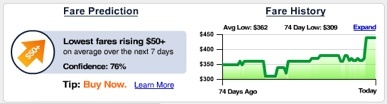
Way back in 2006, Seattle-based startup Farecast was the first to launch airfare predictions. Farecast initially offered airfare predictions for travelers departing from Seattle and Boston to over 100 destinations. The site provided users with information on whether the lowest fares for their trip were rising or dropping over the next seven days, along with expected price movements, confidence levels, and purchasing tips. This innovation marked a significant step in the use of data and predictive analytics for travel planning. Microsoft acquired Farecast in 2008. Microsoft subsequently shut down the flight price prediction tool in 2014.
If you've ever traveled with family and friends, you know what an enjoyable, rewarding experience it can be. Until something goes wrong of course, then everyone turns their attention to the group leader for a quick resolution.
If you're planning your own group trips, being out on an island like this can become very uncomfortable. Here's some tips to help get you through:
Prepare for the best but plan for the worst. While your co-travelers are on vacation, you're working - at least to the extent that everyone is safe and secure. Understand the logistics of your trip and have a contingency plan in case something goes awry. Collect emergency contact information for all your travelers, and a list of any medication they may be on. This way, if something does go wrong, you are prepared to deal with medical professionals and family/friends back home.
Pass out Chill Pills. True story - one group leader gives each of her travelers a sugar pill on the first day of the trip while explaining that at one point during the trip some thing's not going to go as planned, because, well that's the way travel is. She advises them to ingest the pill at the first sign of distress. It sets the mood for a relaxing trip.
Share the responsibility. Not an accountant? Somebody in your group is probably good with numbers. Assign them the task of group accountant for shared meal or drink expenses. Look for buddies that can also help arrange transportation, tours, and make sure everyone stays on schedule and is prepared for the day's activities.
Protect your investment. Travel insurance used to be thought of as an unnecessary expense that was geared for seniors. However, with today's tumultuous travel climate and tighter restrictions on private insurance policies it's a necessary evil. Look for a travel insurance policy with "cancel for any reason" options.
Go with a pro. If handling hotels, sightseeing, meals and activities is too much of a load - find a capable tour operator to plan your group's trip. This is especially true with overseas travel, with companies like Globus, Go Ahead Tours and Collette Vacations specializing in working with small groups. Another benefit? The group leader travels free with as little as 8 paying passengers (shh!).
Group travel planning can be a fun, rewarding experience if you follow these guidelines. For more group travel know-how, visit our magazine website.
Jeff Gayduk is a 24-year veteran of the group travel industry and the founder and publisher of Leisure Group Travel magazine and InSite on Leisure Group Travel e-newsletter.
Is being able to walk to nearby restaurants, bars, coffee shops and shopping important to your attendees? What about access to public transportation?
There's a lot of talk about "green" events these days and the best way to make your event fun and green is to choose a location with convenient access to the amenities and activities your attendees want and that doesn't require them to drive long distances or wait in endless cab lines to get around.
The folks at Walk Score, which measures the walkability of any address, just ranked the most walkable covention centers. Here's the top 5:
On a group trip, even when you're traveling with family and friends, you usually find the good, the bad and the unexpected. The good—you make a new friend. The bad—one annoying person drives everybody insane. The unexpected—you visit a destination or attraction you never would have discovered on your own that blows your mind.
No matter where you go, any great trip begins with smart planning. Here are some tips to consider as you get your family, friends or wedding party ready for a trip together:
Test drive the group: Your wild friend Bob and crazy Uncle Larry may be fun to hang out with on a Saturday night but they might drive everyone nuts during a two-week trip. Before spending a vacation together, try a long-weekend group trip to see what the dynamics are like. Then, plan accordingly.
Set ground rules: It is very important to make the "ground rules" crystal clear at the beginning of the trip. It helps to have them written down and handed out (even to your family members). Ground rules can include how costs are divided up, daily departure times, who’s responsible for driving, etc.
Timing is everything: When traveling as a group, the "on-time" issue usually causes the most friction. Invariably, one or two people are always late for the morning blast-off and/or wander off at stops and are nowhere to be found when it’s time to hit the road again. Nip this situation in the bud immediately! It’s not only annoying but unfair to the rest of the group.
If a gentle (or harsh) reprimand doesn’t work, a) assign an on-time "buddy" to the person (this task can be rotated among the group members); b) simply state that the car/van/bus will take off at the appointed time and persistent latecomers will be responsible for getting to the next stop on their own. (You can put this in the ground rules memo.)
Schedule downtime: Don’t let the desire to see everything blind you to the need for daily downtime. Be sure to plan for time to relax by the pool and/or change clothes back at the hotel.
Staying connected: Even on vacation, we are all so attached to our need to check e-mail. Find out in advance from your hotels if there’s a WiFi connection in the rooms or if there’s a business center for those who don’t have or don’t want to bring a laptop. Also, check if there is a hotel "hotspot" charge to access the internet.
Provide options: You may love your family and group of friends, but spending every waking moment together for a week or two can be trying. Plan optional activities and restaurant choices so individuals or smaller groups can branch off on their own.
Activity options could include a choice of museum hopping, shopping or a sports activity. For restaurant choices, contact your hotels in advance and get three good restaurant suggestions for each place you’ll stop for meals. You might wind up eating together anyway, but it's good to provide choices for those who might need a break from a little too much togetherness!
Jacquelin Carnegie is a contributing travel editor to Accent magazine. For the past 15 years, she has covered international travel destinations for both consumer and business publications.
If you're putting together vacation plans with friends or family, there are great resources online for researching destinations, activities and attractions. Many state tourism sites offer travel ideas for where to go and how to entertain your group; quality sites have practical information, beautiful photos, give an accurate glimpse of what to expect from visiting the area, and are easy to navigate.
In alphabetical order, here are links to the official tourism websites for all 50 states:
By guest blogger Brianne Wheeler
Part two of two-part series on travel insurance and precautions to take
Preparations and precautions can and should be taken when traveling in groups, especially to foreign countries. Here are the Consumer Reports on Health risks and precautions to be taken to prepare better for a trip. They go hand in hand with travel insurance to provide traveler peace of mind.
Traveler's Diarrhea
Most common illness, strikes up to 60% of visitors to developing countries
Self-help step: Avoid non-pasteurized dairy products and tap water
Self-help step: Choose foods served steaming hot
Medical supplies to pack: Non prescription loperamide (Imodium A-D)
Medical supplies to pack: Prescription antibiotics for more severe cases
Motion Sickness
Nausea as a result of the inner ear, eyes, and body sending conflicting signals to the brain while flying, boating and driving
Self-help step: Keep head still, close eyes or look at stationary objects
Self-help step: Avoid reading
Self-help step: Open vents or windows to increase air flow
Self-help step: Move to the center of the boat
Medical supplies to pack: Prescription scopolamine skin patch (Transaderm-Scop) or tablet version (Scopace)
Medical supplies to pack: OTC drugs dimenhydrinate (Dramamine) and meclizene (Bonine) are not as effective
Jet Lag
Insomnia, irritability, and foggy-headedness caused by a sudden time-zone shift
Self-help step: Before traveling, shift activities to correspond to time zone of destination
Self-help step: After arrival, spend time in the sun
Medical supplies to pack: Melatonin (2-3mg) may ease symptoms when started on first night of travel (has not worked in some studies)
Insect-Borne Diseases
Across much of Latin America, Africa and Asia, mosquito-borne malaria and dengue fever are serious concerns
Self-help step: Use repellents containing 30-35% deet on exposed skin
Self-help step: Sleep under mosquito net treated with permethrin repellent (Duranon, Permanone)
Medical supplies to pack: No vaccine is available for Malaria; ask your doctor for the best drug for your destination
Medical supplies to pack: No vaccine or preventative drug is currently available for Dengue Fever
High Altitude Sickness
Headache, fatigue, nausea and vomiting resulting from a rapid increase in elevation
Self-help step: Before going to a high altitude, spend a few days at an intermediate elevation
Self-help step: Until you are acclimated, avoid rigorous activity
Self-help step: Drink a lot of fluid to avoid dehydration
Medical supplies to pack: Prescription acetazolamide (Diamox) starting 1-2 days before altitude change
Blood Clots in Airplanes
Prolonged sitting increases the risk of leg clots, potentially causing a life-threatening lung embolism
Self-help step: While seated, flex ankles and knees often
Self-help step: Walk in the aisles about once an hour
Self-help step: Drink plenty of non-alcoholic beverage before, during and after flight to avoid dehydration
Medical supplies to pack: If you take a drug that increases the chance of clots or have other risk factors, consider compression stockings, and/or ask your doctor about preventative aspirin or heparin
Car Accidents and Other Injuries
Accounts for about 1 in 4 travel-associated deaths
Self-help step: Don't drive at night in rural areas
Self-help step: Don't drink while swimming or boating
Self-help step: If possible, choose lodging with smoke detectors and sprinklers
Medical supplies to pack: Bring bandages, sunblock, tweezers, moleskin for blisters, water purification tablets, pain reliever, topical antibiotic
Medical supplies to pack: Carry list of medical conditions and contact numbers
Avian Influenza A (H5N1)
Transmission to humans is rare, but the influenza is widespread in birds
Self-help step: Avoid contact with chickens, ducks, geese, live-food markets, places contaminated with poultry excrement
Self-help step: Make sure food is thoroughly cooked
Medical supplies to pack: No vaccine for Avian Flu is currently available
Medical supplies to pack: Risk is too small to warrant carrying anti-flu prescription drugs
Source: Courtesy Consumer Reports on Health
Brianne Wheeler is the Assistant Marketing Manager for Travel Assist Network, a global medical services company that provides medial evacuation, travel protection, and critical information services to travelers worldwide. It also provides custom protection for corporations, travel groups, and non-profit organizations tailored to meet each group's coverage needs.*
By guest blogger Brianne Wheeler
Part one of two-part series on travel insurance and precautions to take
Since the September 11 attacks, many travelers and group travel organizers have become increasingly concerned with their health and safety while away from home. As a result, many companies have launched travel protection products to give travelers peace of mind.
Here are common travel insurance options for individuals and groups, plus tips for finding what's right for you:
Medical Evacuation: Provides emergency transportation for a traveler who has a medical emergency, which is especially important when traveling to remote areas. Medical evacuation membership programs offer an array of additional benefits, such as lost luggage compensation and guaranteed hospital admission.
The fine print:
Nearest Appropriate Facility: With this coverage, you are likely not going to be transported to your home hospital, but rather to the nearest clinic or hospital that the insurance company deems adequate. You can also look for coverage that provides transportation to the home or specialty hospital of your choice. Independent medical evacuation services, as opposed to comprehensive travel protection policies, often provide this option.
Coverage Limits: If a group of travelers purchases a plan covering $20,000 of medical evacuation per person and one of the travelers has a medical emergency with a cost to evacuate of $75,000, the patient is responsible for covering the remaining $55,000. Be sure to purchase coverage that is unlimited or has a very high dollar limit.
Travel Health Insurance: These policies typically cover expenses that a traveler may incur from being in the hospital or seeing a physician while traveling. Coverage may also include benefits such as trip interruption, trip cancellation, travel delay, extreme sports and identity theft assistance. Note: Coverage may also include medical evacuation coverage, but several companies offer medical evacuation as an independent service.
The fine print:
Trip Cancellation Coverage: Before purchasing trip cancellation, make sure you know what the limitations are. For example, if a group of surfers plan a trip to Florida and a hurricane hits three days before their departure, most companies require that they cancel prior to the storm being officially named. Outside of bad weather, some policies will allow you to cancel for any reason; however, many only let you cancel for personal or family medical reasons.
Terrorism Coverage: With the recent political unrest around the globe, some companies have listened to travelers' concerns and expanded coverage to include benefits for travelers who are injured victims of a terrorist act. You'll want to ensure your coverage includes this benefit.
Although, thankfully, the majority of people travel to and from their destination with no medical emergencies or other issues, it's nice to have peace of mind and protection from unforeseen events. A tip for groups: purchase coverage together because groups usually receive discounted rates. Finally, here's a list of travel preparations and risks in various regions of the globe. Bon voyage!
Brianne Wheeler is the Assistant Marketing Manager for Travel Assist Network, a global medical services company that provides medial evacuation, travel protection, and critical information services to travelers worldwide. It also provides custom protection for corporations, travel groups, and non-profit organizations tailored to meet each group's coverage needs.
In planning a multi-day group tour, volunteer vacation, or multi-week trip abroad, all of these questions are useful for determining which group tour is right for you.
What is the max. number of people on the tour?
What kind of bus is used?
Does the tour company sublet its tours or use its own employees?
Is the tour guide a native English speaker?
Is the tour offered in English?
Will you get the same tour leader in each location or local leaders per town?
Are all entrance fees included?
Are tips included also?
Are hotel transfers part of the package?
Can the tour guide change the itinerary when weather changes?
Are you the group geek? Along for the ride and prefer not to bother with trip details? Enthusiastic about one very specific element of the trip but indifferent about others? See how to use your natural talents to the fullest when planning that next group trip.
Here are common group profiles I've witnessed over the years:
Group geek: The one who must bring a cell phone, blackberry, or other widget lest they feel isolated from their real world of technology. This is also the person who brings a GPS and on camping trips, ski trips, or outdoor adventures and everyone ends up appreciating this person the most. Sound familiar? Suggestion: Careful not to geek out by tripping on the latest iPod or Zune features. Instead, think outward and perhaps suggest a GPS treasure hunt activity for the gang while traveling together. Offer your uber efficient Internet research skills for the troop leader in finding the best hotel and give your quick comments in the hotel discussion area of search results, then post it to the group's trip home page.
Troop leader: The idea person. The charismatic rally gal/guy. The motivated one who seems to have an internal compass pointing them in the right direction and helping them make decisions quickly, gather input, urge people to make reservations on time, offer activity options, and send out invites. This person is the point person of the trip, who can get as frazzled about pulling loose ends together as excited for the trip itself. Sound familiar? Suggestion: A smart troop leader delegates. If you prefer to be in control of certain trip aspects, just make sure you ask for input on key decisions such as hotel rooms, etc.
Indecisive: They love their friends, family, or the people with whom they'll travel. Or perhaps they like the ski club with whom they'll swish down the slopes. They're an open person who sees all sides of arguments and is likely philosophical. The good thing is they really don't care which mountain to ski on, what time the group leaves, which shuttle is used for transportation, as long as they're on the slopes. Problem is people sometimes need input and opinions so they can make decisions about where to stay. While the indecisive person oscillates between choice A and B because they may not want to hurt anyone's feelings who recommended either, ultimately decisions need to be made. "Whatever everyone else wants" can be a disguise for "I have no freakin' idea!" Sound familiar? Suggestion: Take a stand. Take your pick. Your flexibility and openness is appreciated, but your vote counts and is desired. In trip blog discussions, join in on conversation topics so decisions can quickly be made. Just as on election day, your voice counts.
Whiner and/or Frequent Special Requester: Surprisingly, these people may not realize they are doing this because it can be so subtle. The overt whiners are obvious and tend to bring the group down by taking every opportunity to moan about something or other. Subtle whiners can hold back key trip decisions by being slightly selfish or continually making changes to pre-set plans; for instance, saying they agree to a wine-tasting tour but later announce that they might go on a no alcohol detox diet (after the tour has been booked) so may not be able to participate. These are the special request kings/queens. The high maintenance types. We all want what we want, but consensus (which may mean compromise) on group trips is imperative. Sound familiar? Suggestion: Careful not to let negative feedback cloud the pre-trip planning process. Remember the trip is geared around everyone and remind yourself how great the rewards will be: seeing old friends and getting away. If you have a special request, you may be able to arrange that separately. Or save the most important special request to share with the group.
Group Socialite: This type of person wants to be in the heart of everything all the time. That doesn't mean they necessarily have to be the center of attention (although extreme versions exist). But they have more energy than most people and often push to stay up late, go the extra distance on physical activities, and even make new friends while traveling. This natural extrovert is an ideal person to help get the word out about the trip if you're organizing a trip where you can invite anyone. Sound familiar? Suggestion: You're a natural trip promoter and might be the best person to help organize key parts of the trip such as researching activities, etc. Let your enthusiasm bubble over into the trip planning process.
Who am I missing? Know of any other group profile that sounds familiar?
Planning a wedding, a milestone birthday, anniversary party, or any other organized group event? Scope out potential locations on a site specializing in helping you find event venues. Eventective is a searchable with Google maps per U.S. city flagged with event locations. Full addresses and basic overview information about each venue is also available.
Do your own digging around the site and find the ideal location for your next group event.
Holidays are just around the corner. Families and friends will gather to spend quality time reconnecting. While the holidays are some of the busiest travel times of the year, there are several prep steps to take to avoid the typical holiday stress.
Here's how to avoid common holiday stressors by planning ahead:
Long lines: Avoid long lines at airports by taking an extra day off of work (on less busy travel days), or traveling when flights are less likely to be full. Be flexible.
Travel expenses: Book early to save on flights and hotels. If you see a sale price for a package deal (hotel + airfare) or hotel, or flight, you should grab it as prices are only likely to increase as the date approaches. Also, consider airports nearby but not exactly where you wanted to go and consider renting a car, taking a train, or a puddle jumper plane to your destination. Sometimes, creative planning can get you there for cheaper. Shop around on discount sites or even use sky miles to help out.
Rides to and from airport: Nothing is worse than standing in the cold outside an airport hoping your ride shows up soon, at that terminal, at that airport, on that day.
Where to stay: If gathering at a relative's house, discuss or share accommodation options together.
No peace and quiet: Want to ensure you have a little solo time on your trip, so you aren't inundated with family 24/7? Here are a few tips for getting time to yourself through the joys of iPods, books, exercise, and dogs.
Missed opportunities: Plan ahead on attractions, shows, museums, theater events, golf tee times, and other activities that could be sold out.
Broadway shows entice travelers from around the world. They are a great excuse to escape hot, summer days or chilly, winter nights. And the star-studded casts, Tony Award-winning choreography, and finger-snapping music turn girls getaways, family reunions, bachelor parties, and vacations with friends into more memorable occasions.
Theatre entertainment is no different from the travel industry on defining groups, in that there's no real consistency. Yet when you travel with friends or family, you're a group, no matter your size. With that, I researched several popular Broadway show theatres to get the skinney on what constitutes a group and what your group should know before booking that Manhattan trip.
Most theatres for major Broadway shows had a range of minimums for group discounts to apply, and if your group happens to be smaller than 10 (even 8 or 9 people) you likely can't get a group "deal." However, there are many other ways to bargain hunt for shows, you just need to be a little flexible (see #5 below). Here are group minimums for some of The Great White Way's hottest shows:
Avenue Q plays at Golden Theatre, NYCGroup minimum: 10 tickets
Hairspray plays at Neil Simon Theatre, NYCGroup minimum: 10 tickets
Phantom of the Opera plays at the Majestic Theatre, NYC
Group minimum: 10 tickets
Rent plays at Nederlander Theatre, NYCGroup minimum: 10 tickets
Les Miserables plays at Broadhurst Theatre, NYCGroup minimum: 12 tickets
Chicago plays at Ambassador Theatre, NYC
Group minimum: 15 tickets
Beauty and the Beast plays at Lunt-Fontanne Theatre, NYCGroup minimum: 15 tickets
Mamma Mia plays at Winter Garden Theatre, NYCGroup minimum: 15 tickets
Spamalot plays at Shubert Theatre, NYCGroup minimum: 15 tickets
The Lion King plays at Minskoff Theatre, NYCGroup minimum: 15 tickets
The Color Purple plays at Broadway Theatre, NYCGroup minimum: 15 tickets
The Producers plays at St James Theatre, NYCGroup minimum: 15 tickets
Wicked plays at Gershwin Theatre, NYCGroup minimum: 20 tickets
Often, group tickets are available for a more limited time than individual tickets. The closer to the show date, the less likely you are to get group rates. Plan to get a head count and tickets early. A couple months in advance is preferred.
Group tickets can be purchased online at the theatre's Web site, or at a consolidator site such as Best of Broadway or via phone.
Group discounts vary from show to show and theatre to theatre, but can be sizeable. Beauty and the Beast tickets as listed on Best of Broadway, for instance, are currently discounted $25 - $40 per ticket, depending on the seating section.
Last minute individual tickets are also available, but not guaranteed. If you didn't plan ahead to get group discounts or were unable to plan that far in advance (perhaps the head count wasn't finalized until one week prior to the trip) then there are a few options. You can always walk up to a TKTS box office the day of a performance to check on last-minute tickets. Or look at last minute tickets from Broadway.com a few days in advance.
The New York Times recently published an article on the increase in flight cancellations and the impact on travelers. It's a great read, not because the topic is pleasant, but because it gives insight and helps you realize you are not alone. It also makes me wonder why air. You should definitely read the whole article, but the upshot is:
Always, always check at least a day before your flight departure to see if your flight has been cancelled.
It sounds like airlines occasionally cancel flights if there aren't enough people on the flight, although I doubt any airline would admit to such a tactic. Imagine - letting passengers happily sprawl out on flights and gain a little elbow room. They may even gain a few repeat passengers.
Airlines have a high-tech rebooking reservation system that takes into account things like how frequently you fly with their airline, how much you paid for your ticket, etc. so your chances of getting swiftly and efficiently given a good seat are not necessarily even steven.
Be persistent if not flexible. Occasionally, open seats on other flights "magically" appear if you're persistent enough, after your flight has been canceled.
Flight cancellations are sporadic and unpredictable still. May the force be with you.
Budget Travel Online has a list of 10 Tips to Cancellation, Change, and Refund Policies that seem relatively evergreen. I say relatively, because as quickly as airlines can sell a window seat, that's how quickly a policy can change. That aside, these are ten good guidelines to consider before booking trips.
Also, there are links to major airlines' refund policies so you can see what specific airlines offer for refunds currently.
The biggest thing to keep in mind: there is no universal cancellation policy in the travel industry. Each supplier, each airline, each hotel, travel operator (Expedia, etc.) has their own version. Read the fine print on each and never be shy to ask questions.
Want five-star service no matter where you travel? Only the best for your destination wedding or family reunion all costs aside? Need to getaway with friends, treating yourselves with lavish luxuries savored for special occasions (or simply required as your standard of living) and can afford to spend? Here are several tips for luxury group travelers:
Escorted luxury tours by Abercrombie & Kent
Numerous tour operators provide high quality experiences abroad or within the U.S. Arrange a group escorted tour or independent tour where your group has more free time to explore the area on your own, yet still in the lap of luxury. Abercrombie is a leader in luxury group tours.
10 lavish hotels worth the splurge by A Luxury Travel Blog
Worldwide luxury hotels and resorts where you can expect the highest service, most beautiful scenery, and a feeling of utter pampering.
Luxurious destination spas by Spafinder
Pampering at spas is a given, but when you go to destination spas, the minute you step foot onto the property, the entire vacation experience is geared toward your comfort. A slice of heaven on earth.
Charter jets for groups by Flexjet
Tired of crowds, lines, and lower quality service of economy flights? Charter a private jet for your group. There are many to choose from and if you split the cost between the group, the price may not be as high as you think. Or you may decide the extra price is worth traveling together with convenient, speedy service.
Outlandishly expensive things to do in New York City by PocketChangeNYC
A free weekly newsletter features deals to drop your jaw on high pricing in New York. It's "everything you love to hate and hate that you love."
High tech portable sommelier by Vagablond
This robot sommelier can identify wines and make food pairing recommendations, so say its Japanese manufacturers. Gadget lovers can bring it along on luxury vacation for kicks.
Ready to plan that lavish trip of the century (or month, for those who can afford the frequency) with your pals or extended family?
Harvest time is now. Weather is cooling. Leaves are afire with color. And activities turn more indoors, often to creature comforts such as cooking, culinary tours, regular meals with families, and food in general.
To inspire your next special meal or gathering, these three sites offer annual rankings of the best restaurants in the U.S.:
OpenTable's Top 100 Restaurants in the U.S. is compiled from over 12 million verified diner reviews and dining metrics, including diner ratings, reservation patterns, and five-star reviews.
Yelp also releases an annual list of Top U.S. Restaurants. For 2023, their top pick is the Los Angeles restaurant Broken Mouth.
Tripadvisor's Travelers' Choice Award for 2023, named the Best of the Best Restaurants, is based on the quality and quantity of reviews on its platform. This list includes different subcategories, from quick bites to fine dining, and covers a range of styles including hidden gems and everyday eats.
For special occasions (birthday parties, bachelorette parties, engagement parties, rehearsal dinners for weddings) and holiday gatherings, treat your group, family, and/or friends to a sumptuous meal. You can also treat yourself and call it "research" for new holiday meal or family reunion dish ideas. Expensive though these restaurants may be, sometimes life's worth a little indulgence, especially during the colder months. Bon appetit!
Thanksgiving, Christmas, New Year's Eve are three of the biggest holidays of the year. I received my first holiday party invitation just last week, which reminds me that people are planning early. If you're traveling or hosting a family or friend get together around the holidays, here are some basic tips:
2-3 months in advance (minimum)
Research how group reservations work if 10 or more people are traveling together for a holiday.
Restaurants book up during the holidays and often stop taking reservations when they've reached reservation capacity. Book reservations for your group now for holiday parties and gatherings.
Holiday travel is one of the busiest times for many airlines. Start looking for flight prices and if you find one in your budget, book it now. Depending on your location, you can look into train travel as a transportation alternative.
Hotels in major metropolitan areas and beach areas see an uptick in business around the holidays, so book early.
Create or determine a budget for yourself (for Christmas gifts especially) and stick to it.
If your trip hinges around one big event such as a New Year's event, purchase tickets as early as possible.
1 month in advance
If you're hosting guests for big meals such as Thanksgiving, Christmas dinner, etc., plan the courses and make food assignments if necessary (desserts, salads, appetizers, wine, etc.) to share the expense and responsibility. Most guests want to contribute.
Accommodations for those not staying in hotels or last-minute arrangements for friends/family who weren't able to book in advance. Perhaps you can make arrangements to borrow a neighbor's house while they are away, or book a local B&B that isn't easily discovered on the internet but would make the trip more enjoyable and affordable for some.
Plan group activities such as area sightseeing, attraction visits, purchasing admission tickets for events such as art exhibits at museums/galleries or theater shows.
Collect money from everyone and track shared expenses.
Shop for gifts.
1 week in advance
Confirm all flight, accommodation, activity, restaurant and train reservations and/or arrangements.
Final gift shopping.
Dust off games, borrow games from friends/neighbors, or buy new ones to make time spent with friends and family more enjoyable.
3 days in advance
If cooking a big meal, get all foodstuffs and start preparing meals early.
Wrap all remaining gifts. Buy a few extra general gifties (calendar, journal, wool socks, gift certificate to Barnes & Noble) in case someone brings a boyfriend or girlfriend home unexpectedly.
Clean the house, or if everyone is traveling to a destination, make sure you have a friend or neighbor keeping an eye on your place (collecting mail, watching pets, watering plants, etc.)
You're a member of a church that takes spiritual retreats. Perhaps your tennis or ski team travels for competition. Or your alma mater organizes football tailgate parties for home and away games. You could be a soccer parent planning away games with other parents. Or even belong to a swanky book club that travels to Italy after reading Under the Tuscan Sun. Whatever your lifestyle is, membership organizations (clubs, teams, associations, etc.) are great ways to stay active and pursue interests while meeting new people and reconnecting with old friends or colleagues.
For like-minded individuals who travel together, here are planning resources for organizing your next group trip.
The Art of Delegation (originally written for family reunions and weddings, these principles also apply to group trips with teams, clubs, and associations)
Quick Checklist for Club, Team, or Organization Group Trips
Prepare a budget. How much will it cost? What are the shared expenses? What are deadlines for deposits, etc.? A basic spreadsheet with all big pre-trip shared expenses will help if you're organizing or on a committee for a given trip or retreat.
Collect money for shared expenses such as hotel rooms and transportation. You can track money owed using TripHub's money tracking tool.
Get release forms. If your trip is a school scenario with kids traveling with parents, coaches, and chaperones, you'll need to make sure release forms are signed.
Make dining reservations and arrangements for your group. Depending on group size, some restaurants may or may not be able to accommodate you, so book well in advance (even a couple of months). Groups get cranky when not fed, which makes for a stressful, less fun experience for everyone. Arrange for meals on group trips to people sated and/or energized.
Order custom group t-shirts. Nothing screams "team spirit" like a gaggle of people wearing matching uniforms. Geeky though it may sound to some, it's still unifying. Not only can you easily identify each other in crowds, but you'll have a memento from traveling together. You can even put a logo, photo, or pithy slogan on it.
TripHub allows you to easily plan and coordinate trip details so everyone stays informed about trip plans and itineraries. It's ideal for groups where there are varied interests, budgets, needs, etc. Here's how TripHub can help clubs, teams, and similar groups plan trips:
Determine location and destination for the trip
Create a trip home page
Invite team/club/association members (ski team, church group, school mates, professional organization members)
Discuss trip details with travel companions
Create an event schedule of dinner reservations and other key itinerary details
Shop for flights, hotels, rental cars, activities and attractions (or share travel information if already booked elsewhere so the group knows when people arrive, leave, and where they're staying)
Carving around corners, bumping down moguls, breathing in cool mountain air and sweeping views. Ah, the essence of skiing. What a rush. Plus, there's also the company of like-minded ski aficionados. Ski villages offer whatever nightlife you crave, from a quiet family dinner to dance floors for shaking your groove thing with friends.
Boarders and skiers put their passion for powder to practice on slopes across North America from mid-November through March (later if snowfall permits). Skiing is an ideal activity for groups, fostering camaraderie and a healthy dose of competition among friends and family. It allows adventure-seekers to vacation together, skiing off on separate runs if desired and meeting up at the lift lines to swap slope stories. At the day’s end, everyone regroups for some après ski activities. Here’s a guide with tips and resources to help you plan your group ski trip with ease.
Planning Ski Trips
Find a mountain and ski resort for your group
Invite friends, family, or team/club members (ski team, church group, school mates, professional colleagues)
Discuss trip details with travel companions
Create an event schedule of dinner reservations and other key itinerary details
Shop for flights, hotels, rental cars, activities and attractions and share booking details
Ski Trip Checklist
When planning a group ski trip, there are plenty of factors to keep in mind. Does anyone in the group require child care for their kids? Is anyone interested in taking group ski lessons and how varied are the ski skill levels? Is everyone buying group lift tickets before arriving or while there? Here's a quick list of things to consider before you go:
Lift tickets
Ski rentals
Group discounts
Group ski lessons
Ski lessons for kids
Daycare for kids
Restaurant reservations
Bulk food and beverage assignments made (who's bringing what?)
Hotel or rental home reservations
Pet-friendly hotel rooms, condos, or houses
Extra gear for those who may have forgotten gloves, goggles, hats
Top Ski Resorts in North America
Take your pick of ski areas and regions (Colorado, California, Pacific Northwest...) for the upcoming ski season and start planning your ski trip. There are simply too many ski areas to list, but here's our list of the top snowsport destinations for groups.
Ground Transportation Options
Find out what options are available at the airport and ski resort your group is heading to. If you're on a budget, shuttle services offer group rates. One of the greatest benefits of a group trip is being able to split costs such as transportation to and from venues.
Shuttle service – There are usually private services that transfer you from airports to your hotel or ski resort area. Some ski resorts themselves even offer airport transportation to and from their resort. Call ahead so you find the best deal for your group.
Private limo
Taxi
Bus
Rent cars, SUVs, vans
Friend as chauffer – best option if available
Ski-In, Ski-Out Accommodations
Convenient for those who plan to spend most of their trip skiing, you can save gas and glide right outside your hotel door. Hotels, condos, and resorts can all fall into this category. Examples include Snake River Lodge & Spa in Jackson Hole, Sunshine Inn (Banff's only ski-in/ski-out hotel), and The Loft at the Mountain Village 3-bedroom condo in Park City.
Vacation Rental Homes
One of the best ways to enjoy a group ski trip is by renting an entire house. I've done this several times and it's usually been the best option.
Shopping
Most ski resorts cater to skiers and the fact that you're a relatively captive audience, having traveled through snow-covered roads to the mountain. So there's plenty of shopping variety from outdoor gear to apparel boutiques to candy shops to cafés.
Sightseeing
Whether driving or flying in for a weekend getaway or vacation with friends or family, ski destinations often have more to offer than just mountain with slopes. There may be historical or art museums/galleries, or nearby attractions such as lakes to explore. Find out what interests your group most and offer suggestions before the trip.
Nightlife, Restaurants & Bars
You can always find a variety of restaurants, many of them high-end, to recharge after a day on the slopes. And all major ski resorts (Whistler, Vail, etc.) have nightlife equally as invigorating as the day life (if you're in a party mood). But there are also quaint, charming pubs and restaurants as well as the cheap eateries. If your group is set on a certain type of food or restaurant, book reservations as early as possible to ensure a seat.
Wintry Activities
Most ski resorts offer snowbirds other ways to play in the snow either before or after they ski (or when taking a day off of the slopes):
Cross-country skiing (most major ski areas have trails for this, including Lake Tahoe, Telluride, Stowe, The Canyons, Sun Valley, and smaller resorts around the continent)
Massages at spas
Best of the Web (Ski Related Links)
SkiTDS has travel specialists available to help you plan the perfect group trip along with special rate agreements with ski lodging vendors, equipment rental shops, and ski lift providers.
OnTheSnow has aggregated snow reports and snow totals from ski resorts across North America.
Warren Miller movies are simply the best and most fun way to get ready to go deep into the stuff of which snowy dreams are made.
Lake Tahoe guide with links to Tahoe-area ski resorts and après ski activities.
Shipping your ski gear to your destination ahead of time is a great way to simplify ski travel.
Jackson B. wrote us to say, "The ski vacation ideas outlined in the article are simply fabulous. It's going to be a great season!" Thanks Jackson, we agree!
The enchantment of fall is best experienced amidst its vibrant shades of red, yellow, orange and where you can kick up the fallen leaves before they become mulch.
For those seeking to escape the crowds and immerse themselves in the tranquility of autumn, there are places where the fall foliage is as breathtaking as it is serene. Here are a few destinations for viewing fall colors, emphasizing lesser-known parks and scenic routes, and recommending quaint accommodations to enhance your experience.
1. Letchworth State Park, New York:
Often overshadowed by the famous Adirondacks, Letchworth State Park is a treasure trove of autumn colors. Known as the “Grand Canyon of the East,” its deep gorges and lush forests offer a spectacular palette of reds, oranges, and yellows. The best views are along the Gorge Trail, which offers stunning vistas without the throngs of tourists.
Stay: The charming Letchworth Farm Bed & Breakfast offers cozy accommodations and picturesque views of the surrounding countryside.
2. Blue Ridge Parkway, North Carolina and Virginia:
This scenic drive is famous for its fall foliage, but there are still stretches where peace and solitude can be found, especially on weekdays. The section near Asheville, NC, is particularly stunning. Pull-offs like Glassmine Falls Overlook provide secluded spots for leaf-peeping.
Stay: The quaint Applewood Manor in Asheville combines comfort with easy access to the parkway.
3. Door County, Wisconsin:
Door County’s peninsula, surrounded by Lake Michigan, is a haven for autumn colors. The area's state parks, like Peninsula State Park, are less crowded and offer a blend of golden hues and waterfront views.
Stay: Stay at the White Gull Inn for a historic and intimate setting, complete with homemade breakfasts.
4. Enchanted Circle Scenic Byway, New Mexico:
This lesser-known route near Taos loops through the Sangre de Cristo Mountains. The drive is lined with aspens turning brilliant yellow, offering a unique southwestern fall experience.
Stay: The Adobe & Stars Bed and Breakfast in Taos provides a comfortable base with stunning mountain views.
5. Algonquin Provincial Park, Ontario, Canada:
This vast park is a mosaic of maple, oak, and aspen trees. The Western Uplands Trail offers solitude and an unspoiled autumn spectacle.
Stay: The cozy Arowhon Pines inside the park offers rustic yet elegant cabins nestled in the wilderness.
Experiencing fall’s colors in these lesser-known locales not only provides a respite from crowds but also offers a more intimate connection with nature’s autumn display. By choosing the roads less traveled and staying in charming, local accommodations, you can fully immerse yourself in the season's beauty and tranquility. Remember, the best fall experiences are often found off the beaten path.
Green travel, a term synonymous with sustainable and eco-friendly tourism, has significantly reshaped the tourism industry. This concept emphasizes minimizing the environmental impact and promoting the well-being of local communities while exploring the world. The journey of green travel as a recognized and valued aspect of tourism offers a fascinating study of evolving traveler consciousness and industry response.
The Genesis of Green Travel: The roots of green travel can be traced back to the environmental movement of the 1960s and 1970s, a period marked by a growing awareness of our impact on the planet. However, it wasn't until the late 1980s and early 1990s that the concept of sustainable tourism began to gain traction. The 1992 Earth Summit in Rio de Janeiro was a pivotal moment, highlighting sustainable development's importance, which includes sustainable tourism.
Evolution of the Trend: Initially, green travel was largely about conservation - protecting natural habitats and endangered species. However, over the years, its scope expanded. By the early 2000s, it began encompassing a broader range of concerns, including supporting local economies, preserving cultural heritage, and ensuring ethical practices in tourism.
In recent years, with the alarming acceleration of climate change, green travel has become more urgent and nuanced. Travelers and industry players are increasingly considering carbon footprints, seeking ways to reduce and offset emissions associated with travel.
But, when is "Green" Meaningful in Travel? The term "green" is most meaningful in travel when it translates into tangible, positive impacts on the environment and local communities. This means going beyond just eco-friendly practices to embrace the principles of sustainability in a holistic way - economically, socially, and environmentally.
Criteria for substantive green travel include:
Reduced Environmental Impact: This involves practices like using renewable energy sources, minimizing waste, and conserving water.
Support for Local Communities: It includes buying local products, employing local staff, and engaging in fair trade practices.
Cultural Sensitivity and Preservation: Respecting and supporting local traditions and heritage sites.
Education and Awareness: Encouraging travelers to learn about environmental conservation and cultural respect.
Several websites and platforms have emerged to help travelers make informed, eco-friendly choices. Some notable ones include:
Sustainable Travel International: This nonprofit organization provides resources and tools for sustainable travel, including carbon offsetting options.
Green Globe: Offers certification for sustainable tourism, helping travelers identify responsible travel and tourism businesses.
Responsible Travel: This platform connects travelers with a wide range of eco-friendly and ethical holiday options.
As our planet faces unprecedented environmental challenges, green travel presents an opportunity for us to explore the world responsibly. By choosing sustainable travel options, we contribute to the preservation of the planet and its diverse cultures for future generations. The evolution of green travel reflects a growing global consciousness about the impact of our travel choices, heralding a more responsible and sustainable approach to exploring our world.
If you're considering going on a professionally-arranged group tour, there are key things to ask about in the first ten minutes of your research. Here are the 10 most important things to consider:
1. References: Make sure the references the wholesaler gives you are for similar groups to yours. Example: if they only take European travelers, you might find group needs differ from those of Americans.
2. Small print averse? At least read cancellation penalties and figure how much you can lose if your trip does not meet its numbers. Airline ticket cancellations are usually the surprise loss. Note: a substantial group organizer will have some pull and flexibility with your hotel/airline choices.
3. Hotel quality: Google the hotel used in the capital city on the itinerary for a general flavor. If the hotel is a condition of your contract, make that clear up front. Many group contracts only specify X hotel or similar.
4. Red flag the word "from" on pricing. It means you are looking at the lowest price.
5. Trip pace: If breakfast, lunch, and dinner are included, you'll be on a leisurely moving trip. I recommend usually 2 meals a day for groups over 25; it moves the trip along. Ask where the meals are held: hotel or restaurant.
6. Financial security: Most group deposits are payable by check only, so credit card acceptance will not gauge financial stability of your wholesaler. But check for travel insurance availability and, if the group tour organizer/operator offers insurance, make sure you know the name of the insurer.
7. Trip length: Forget number of days, most wholesalers include "travel days."
8. Check trade association memberships like ASTA, BBB, and length of time the company has been doing groups exclusively. Many agents doing individual reservations will tell you they also do groups. Other gauges: a 24-hour emergency number, ability to issue tickets themselves, country specialists, pre-printed customized labels, luggage tags, etc. will tell you this is a real company.
9. Prompt responses from the company mean they are group-friendly. Prompt email responses means they cater to Internet savvy travelers.
10. Customer service: Check that the company has a street address and more than one person in their group department.
Get a few quotes and don't be shy to ask for more information on any issue.
Phyllis Stoller has been a group tour organizer for 15 years and is currently President ofWomen's Travel Club*, wholesale operator and largest such group for women in North America. For 15 years Women's Travel Club has run group trips for women.*
In preparing for an upcoming boating vacation, I got to thinking about what I needed to bring. I've never taken an extended boating trip and keep peppering my captain with questions. He's the boating veteran, chef, and navigator - but I'm the list maker. It's all in his head (flares, battery charger, food, packing essentials) and I needed to see a concrete list so I could get organized, too.
Luckily, I just learned about the Universal Packing List, a one-of-a-kind application that helps you quickly prepare for most trips. You simply fill in details about your trip, and the it spits out your list for free. Exactly what I needed.
I tried out the application for my boat trip and was impressed. It doesn't have a particularly snazzy design, but the basic list is all you really need. I selected "All items" for my packing list length (you have a choice of "normal length" "just critical items" and more) and found a plethora of things to do before leaving (from handling spare house keys to holding mail) as well as a full packing list.
Opt to view the comments. They're helpful and specific. Examples: bring a collaged photocopy of pictures of loved ones if you think you'll get homesick, leave most wallet contents at home and only bring the basic credit cards and ID (so if stolen, you don't have to also replace your library card, video rental card, and so forth).
Obviously, each trip has its specific requirements, but the Universal Packing List is about as comprehensive a starting point as it gets.
Are you a last-minute traveler? Spontaneous to the core? If so, you're probably too busy enjoying summer to think about early fall. But you may to keep a few festivals on your radar. September is a golden time of year for cooler weather, for warm, gentle breezes, for parents who get to usher their kids onto school buses or into schools, for the buzz of summer to wind down, and for people to plan those last days of summer vacations.
There are several September festivals for all spectrums of life: families, music lovers, art adorers, food fanatics, and more. Here's a snippet of what's on the horizon for late summer, early fall.
Sausalito Art Festival, Labor Day Weekend (early September)
The Mediterranean-style seaside town of Sausalito, just north of the Golden Gate Bridge, has hosted the world-famous art festival annually since 1952. "The best local, American, and International Artists bring their combined perspectives, virtuoso skills, and more than 20,000 original works of art — including paintings, sculpture, ceramics, jewelry, fiber art, fine glass, woodwork, mixed media, and photography."
Telluride Blues & Brews Festival, September
"...three days of world-renowned musicians performing live on the famous Telluride Town Park stage, late night jams in the local juke joints, 50 choice microbreweries serving up their handcrafted "cream of the barrel" during Saturday's Grand Tasting, the Rainbow Kids area, free Acoustic Artist Series, Blues For Breakfast, and the Telluride Acoustic Blues Camp."
La Tamale Festival, in Los Angeles, September
This red hot event is in its second year, drawing 60,000 visitors. You can enjoy a kids pavilion, world record-eating contests, tamale-making classes, and as much spicy Latin sauce as you can dish up.
Russian Mosaic Festival in Philadelphia, September
This free festival will be a day packed with music, dance, and entertainment. This year's seven-hour concert program is set to showcase the Russian community's original folk, classical, and ballroom dancing performers.
Plano Balloon Festival in Plano/Dallas/Fort Worth, late September
A "something-for-everyone" event, this festival is filled with plenty of hot air. Cow-shaped balloons awe the crowds from above, hot air balloons offer rides, a team of expert sky divers do stunts out of planes. All this with entertainment, food, and plenty to keep the kiddies occupies.
Visit Festivals.com to find a wide range of other arts, cultural, music, and family festivals in the U.S. and around world.
With recent arrests of terrorists plotting to target flights from London to the U.S., there is a temporary code red on flights from London to the U.S. and temporary code orange for flights into the U.S. What does it mean for travelers to travel under a code red or orange?
Smarter Travel gives insight on deciphering the codes. Here are airport security short-term changes known to be in effect:
The Transportation Security Administration (TSA) is prohibiting all liquids, hair gels, and lotions in carry-on baggage within the United States. This includes coffee, soda, and even contact solution.
Essential liquids, such as baby formula, are being allowed.
No carry-on baggage is being allowed on any international flights.
Expect severe security delays at the airport. Television news reports are putting some security line wait times at one to two hours long.
USA Today's blog Today in the Sky gives a run down of the various airline policies for handling the temporary security situation. American Airlines canceled six flights today, United revised its ticketing policy to give travelers a break in changing travel plans and re-booking seats, and other airlines alert travelers to give even more time at airports for tightened security measures.
Homeland Security issued a release about cooperating with Britain to ensure traveler safety and stated, "These measures will continue to assure that our aviation system remains safe and secure. Travelers should go about their plans confidently, while maintaining vigilance in their surroundings and exercising patience with screening and security officials."
My family has been having reunions since I was little girl with goldilocks. For the third in a row, we've gotten together on the Olympic Peninsula in Washington state. Over the years, I've discovered a few myths that I hope will help any reunion planner in preparing for that next family reunion.
Myth 1: I won't drink too much
Be honest. Unless you're making a conscious effort to not drink at all, chances are you'll drink more than usual.
Myth 2: I won't eat too much
Family reunions are all about the food. Obviously, the reason to get together is to reconnect. But more effort goes into meals for this occasion than most other parties. Here are summertime recipes for family reunions.
Myth 3: I won't get a sunburn
Chances are you will, unless you're extra careful to apply sunblock throughout the day, and stay out of the sun during peak midday hours.
Myth 4: I will get ample sleep
It always seems that something is disrupting a perfect night's sleep: varying hours of going to bed, staying up late, getting up early for scheduled activities, kids over-excited, etc.
Myth 5: I will visit with everyone
Chances are slim that you'll have meaningful conversations with all attendees. But the connections you make are important, a link to your past, and a way to keep in touch with extended family. Make a mental list of the top three people you really want to reconnect with and make an effort to do so. You'll thank yourself.
Myth 6: Like other vacations, I'll relax as much as I want
There's an air of formality in a family reunion that is unlike friends traveling together or immediate family taking a vacation. Relatives come together who are genetically similar, but often live very different lives, in different places. You may feel the need to connect with select (extended) family members, while others are interested in visiting with you. This can be tiring, albeit rewarding.
Myth 7: Recycling will take care of itself
People tend to be much more lax about following recycling rules when at a big gathering like a family reunion. A mini tragedy of the commons. Luckily for my family, I have one highly type A uncle who takes big plastic garbage bins, labels them each with his neat hand writing ("plastics," "trash," "glass"), and strategically places them around the main eating/gathering area. We tease him, but appreciate his orderly tendencies.
Myth 8: Injuries are avoidable when family gathersAs for all other vacations (and life in general), safety is important. Have a first-aid kit and phone handy for emergencies. If you have any doctors in your family, the trip organizer may want to locate that person ahead of time and ask if they could wear a cell phone during the reunion just in case.
Myth 9: All the in-laws will fit inAll in-laws are not created equal. Pay attention to spouses or significant others who aren't socializing as much as others and make an effort to include them in conversations. Ask them about their family reunions, family dynamics, family heritage. Or learn more about what they enjoy doing in their free time. Family reunions can be intimidating for the non-genetically related.
Myth 10: My kids (grandkids, nieces/nephews) are the cutestAll kids are adorable in their own quirky or beautiful ways! Careful of becoming that obsessive family member who talks only of your kids (grandkids or nieces/nephews) and has no interest in any other subjects, or continually draws conversations back to your kids. It's wonderful to see such love and devotion to the kids, but even the kids (if they could speak up for themselves) would blush at all the gush.
What are other family reunion myths? Share your stories.
We all get by with a little help from our friends. Traveling is no exception. Vacations are more enjoyable with buddies from college, girlfriends from home, friends from life (soccer or baseball teams), and any other groups.
Reconnect with old friends, reminisce about the good old days, and make new memories that make you laugh 'til you cry with these getaway tips.
Girls getaways
Ladies, start your engines. The games, the energy, the synergy, and the drinks are about to begin. Take a wild or relaxing vacation with your gal pals on a spa getaway, wine-tasting soiree, birthday celebration, or anything goes. Can't go far? Try a mini girls getaway?
Road trip planning guide
Zoom, zoom. Friends, families, and other vacationers are hitting the highways and dusty roads for campgrounds, national parks, family reunions, and zero obligations. Along with sunblock, prepare for a stress-free road trip with these tips. 10 gas and money-saving tips should help as well.
Golf trips
Swing and putt your way down the fairways, slugging beer and making bets against your comrades the whole time. Golf is a great way to relax and visit with friends while working on your game. Also, here are quick tips for planning a group golf getaway.
Bachelor and bachelorette parties
Are you the best man with no clue how to honor your pal with a party? If the only thing that comes to mind is a stripper, see these bachelor party tips first. Ladies, looking to make the bride smile and proud to call you her friends? Here are helpful hints for bachelorette party planning.
Spa Getaways
Just say ahhhh. Spa vactions are on the rise and spas are increasingly catering to groups (girls getaways in particular). Before you go, brush up on some basic group etiquette (so the spa invites you back!). Try vinotherapy at a wine spa, chocolate massages, or any other spa treatments for you and the gang.
Getting the family together for a reunion? Going on a weekend getaway with friends? Planning a wedding? Group reservations can be a bit overwhelming, especially if you are new to the process or on a tight timeline.
Here are tips to help you navigate group bookings with a little more finesse.
What defines a group?
Despite what might seem logical, a group is not commonly defined among the travel industry. Hoteliers, airlines, and cruise lines all have different definitions (10 passengers on the exact same flight vs. 10 rooms double occupancy for hotels).
Air and hotel reservation benefits
Become a bit more of an expert before you plan a group trip with friends, family, or another group. Know when to use hotel or air group reservations.
Group discount myths
Know before you go: group myths are a reality and you may not always get the best deal by booking bulk. Here are some group discount insights.
Speedy group reservation secrets
Want to get a jump on moving the group reservation process along, or making it easier on yourself and your group? Here are a few helpful tips to expedite group reservations.
Update: TripHub's group travel planning tools are no longer available.
He's a last-minute person. She's a type A organizer. However do you go on trips together and still stay married (happily)? Terry A., reveals how TripHub helped her and her husband strike a balance in travel planning.
"When it comes to planning friends and family get-togethers, I am a compulsive organizer and my husband is a 'whatever' kind of guy. I want to know who, what, where, when, and how many are coming. He just wants to invite anyone who happens to show a slight interest. We've managed to enjoy life together for more than 25 years, but we've had our moments.
I started using TripHub's collaboration tools for vacation planning. What a difference the site has made. We've survived two road trips already and have a very large camping trip with friends and family planned for just a few weeks away.
I've been able to coordinate travel plans, book hotels, correctly calculate numbers of guests and stay in touch with everyone! No more passing the word via (sometimes unreliable, though well-meaning) spouses or friends. No more wondering if we would end up with an extra person sleeping on our floor or squeezed in the middle seat of a vehicle. No more 'I didn't know you were bringing your kids' on an adult activity weekend.
I can finally look forward to our trips together without all the stress. I'm quite relaxed about being the vacation planner in the family now.
It's official, you're old. You just received an email from a former classmate that it is time to start planning your next high school reunion. Once the shock wears off, the next question settles in. Where do we begin? Fortunately, I have assembled a to-do list that will help you organize a successful reunion (sorry, I can't do anything about your age).
Don't panic. Planning a high school reunion is a lot of work, but if you follow these simple steps, the process can be a lot of fun and virtually painless.
Plan early for your reunion. Begin at least 9 months or more in advance. (Trust me, you will wish you had started a year ago!) Planning a reunion is a big production; make sure that you have ample time to complete all the important tasks.
Enlist classmates to help. The more help you have, the less stressed you will be. Make sure that the committee is a diverse group from your class. You don't want the reunion to be focused on one group of people with one set of interests. Delegate, delegate, delegate.
Budget wisely. When setting your ticket price include all the costs of the reunion, not just the meal. This includes the cost of entertainment, venue rental, tax, gratuity, postage, printing, decorations, Web site hosting, long-distance phone calls, etc. Be conservative when estimating attendance. You don't want to be stuck footing the bill because an item was omitted from your budget or fewer classmates attended than expected. Set up a bank account to deposit payments and pay bills.
Pick a location and date early. Weekends fill up quickly with weddings and social events, so availability can be hard to find if you wait to book the event. Make sure to ask about deposits, caterers' food and beverage minimums and extra costs. Pick a menu with variety.
Assemble and manage the guest list. Put a complete list of your classmates together using your commencement program, senior annual and information from previous reunions. This list should be in a database or spreadsheet that is easy to update and manage throughout the process. Include a method to track RSVPs, orders, payments, meal choice, etc.
Start locating your classmates now. I cannot stress this enough. This is a huge, time-consuming process. You may have to call parents, siblings, old roommates, etc. to track them down. Use the Internet. Online phone books, alumni Web sites, and community Web sites are all beneficial.
Create a fun, simple, and easy-to-read invitation. Make sure to list all the essential information (date/time, location, ticket price and attire). Also, include contact information of the committee member in charge of answering questions and responding to complaints. Don't forget to let your classmates know where to return the reservations and make their checks payable to. Include payment deadlines to encourage early registration.
Get the word out early. People are busy during the summer months, so make sure your event is number one on their calendar and get the invitation out at least 4-6 months in advance.
Make time for the "extras." The memorabilia displays, event program, name tags, memory books and table decorations are the things that people will remember years down the road. This will help make your reunion special, giving it character or charm (depending on theme, setting, decorations).
Collect personal information on your classmates. You can compile it into a memory book for each alum to take home as a memento of the reunion.
Remember, this is your reunion. Don't get so caught up in the details that you lose sight of what is really important. Reunions are about reconnecting with old friends, reminiscing about the good ol' days and looking forward to the future.
If all this prep work isn't up your alley, consider the alternative of hiring a professional reunion planner. Many companies provide reunion management services, handling all the behind-the-scenes details such as coordinating with vendors, locating your classmates and managing the database, paying bills, covering liability insurance for the event, staffing the event, and more. You can find a professional reunion planner at the National Association of Reunion Managers. Happy reunion planning!
Andrea Turk works with Reunions with Class, Inc., has been in reunion planning since 2001, and has helped more than 400 reunion committees organize successful reunions.
Want to speed things along when blocking off rooms or booking group flight reservations for a wedding, family reunion, or special occasion with friends? Believe it or not, so do the group reservation agents. Plan ahead with these basic steps, so the group reps can speed things along.
Familiarize yourself with the benefits of group booking such as same rates for every member of your party, potential room upgrades, and more, so you know what to expect.
Educate yourself about some basic hotel group policies so the questions you ask are more specific and tailored down to your group's needs.
Educate yourself about standard airline deposit terms and lingo so you're as prepared as possible when it comes time to make a group reservation.
Use the "who's coming" (RSVP/invite) feature of TripHub to correctly estimate the number of group passengers who will travel will help avoid penalties for falling below the minimum number needed for a group rate. Give the group representative a number as close to accurate as you can.
Flexibility on dates and times is key. If your group can travel at different times or on different dates, this will assist the group desk in finding the best rates.
Discuss alternative airports or destinations with your group and give that information (in comment fields on online forms) to the group reservation desk. This could result in additional savings for the trip.
When traveling with friends and family, you may qualify for group reservations. Hotels often require a 10-room minimum (of double occupancy which equals 20 people) and airlines typically require a 10-passenger minimum. If your group fits into those criteria, the booking process differs from booking reservations as individuals. And while there are a few cons to booking this way (including some discount myths), there are also numerous benefits.
You get a real human helping you out through the process.
You get the fairness of everyone paying the same rate.
You get the benefit of being able to get rooms at the same place and seats on the same flight.
If your group is only a little bigger than the number of units (seats/rooms) available at a low price, the supplier (or a good group representative) may open up a few more in order to ensure they get the group booking.
Full price isn't due until (usually) 30 days prior to departure. By booking air reservations in bulk (and often hotels as well), you'll be able to make a deposit and pay the remainder as you get closer to traveling. This helps with planning so you can send reminders to people, do fundraising activities, and folks don't have to pay for big expenses too far in advance.
Some hotels will offer additional amenities such when booking a big block of rooms.
Special requests: These can often (but not always) be accommodated, including making sure the entire group has rooms/seats near each other or on the same floor of a hotel.
Locking in availability: Hotels and airlines have their room/seat inventory management down to a science and their goal is to maximize profitability. By booking in bulk, you can lock in a certain rate and ensure you have enough space for your group. Group room/seat availability varies by hotel/flight; just plan early (several months in advance).
Remember, hoteliers want to put heads in beds just as much as airlines want butts in seats. The same goes for cruise lines and activity operators. A half-full ship sailing to the Caribbean is a sad ship sailing to the Caribbean in the supplier's mind. Groups are the industry's way of helping manage their inventory and ensuring they meet their sales numbers.
Group reservations may not work for every group trip, but if it's good to know the rules of engagement and some of the pros and cons to expect.
Everyone wants to save a few dollars, even a few hundred dollars when traveling. Travel deals, airfare sales, hotel specials (3rd night free, kids stay free) all entice us to vacation with saving money. But is it really cheaper to book in bulk? Sometimes. But not always.
There are numerous group reservation benefits. But here are common myths:
Myth #1: Groups discounts are commonly defined across the travel industry
Airlines generally define a group as 10 or more passengers. Hotels tend to define a group as 10 or more rooms of double occupancy (20 people). Cruises and activity operators have their own criteria for groups. Restaurants vary on whether or not they can accept group reservations, and if they do, less likely to offer discounts unless you have a coupons already. Many activity operators (snorkeling tours, river rafting, etc.) can accept groups, but the number of people varies widely depending on vehicle occupancy, type of tour, etc. You get the idea. Your group may qualify for a discount at a theater (7 girls on a getaway weekend), but not for a block of rooms at the hotel closest to a friend's wedding.
Myth #2: If a group has fewer than 10 people, it is not a group
Not true. What about the group of 7 guys who goes golfing for a weekend? Or 9 girls on a spa getaway? Or an extended family traveling together: parents, kids, grandparents, aunt/uncle? They are absolutely groups. Groups don't have to be industry-defined to travel together. Friends and family travel in groups all the time and aren't necessarily considered traditional groups by the travel industry. See more on what defines a group.
Myth #3: Seasonality doesn't affect group reservations
Travel industry prices are highly tuned into the seasons, regardless of how many people in the party. Caribbean is cheaper than ever in the Spring and Fall (during hurricane-prone seasons), while Hawaii is most expensive during the week between Christmas and New Year's Eve. It doesn't matter how big your group is, you'll pay more for a European summer trip than you would in a lower season month (such as October). And the same applies to other destinations and their peak seasons. Planning well in advance can help, you aren't immune from the seasonal pricing fluctuations. Seasonal rates apply to airlines, hotels, activity, cruises, and tour operators.
Myth #4: Black-out dates don't apply to groups
Groups can travel any time, but all travel is subject to peak times and black-out dates (which vary by destination). Fares are higher, deadlines for things like deposits are more restrictive, and space is more limited not just for peak travel, but also for black-out dates, such as major holidays. While destinations and suppliers vary for black-out dates, U.S.holidays are when availability is most limited for the majority of suppliers including airlines, hotels, restaurants, theaters, and many activity companies.
Myth #5: Booking group reservations guarantees a discount
First, the number of units (seats/rooms) your group needs may exceed the number available at the cheapest rate, so even with a discount off the lowest rate available for your group, at least some members of your group could find a lower price by booking individually.
Second, prices do not necessarily go up as you get closer to the travel date, so contracting early enough to ensure that there's enough space available for you puts you at risk of missing out a potential lower price later. Just as with individual purchases, deciding when to buy is a trade-off between price and availability, and a bit of a bet.
Myth #6: Deposits for group flights and hotel rooms are fully refundable
Restrictions occur (and vary) for any group reservation. Normally, if people cancel and the total number of passengers falls below 90% of your original estimated number of passengers, you'll lose the deposit for those passengers. If the final number of people who go on the trip is below the pre-set minimum, all existing tickets/rooms must be reissued and penalties may apply (such as flight change fees).
Armed with this reality check of group discounts, go forth and travel the world together. Discounts do exist. They just aren't as easy to secure as we'd all like to believe, and it does take a little vigilance to manage a group contract. Just be sure to ask the group reservation representative, as they're usually willing to be helpful to make sure your group is accommodated.
p.s., thank you to Camille E. for sharing her experience as a travel agent: "I very much agree with your advice on group travel. More people need to be aware of these factors when booking a group. I am a travel agent and many times group rates just ensure that everyone is paying the same price, especiallywith airfare. Just because you are a group does not mean cheaper. Quite often there are only so many seats in a particular class of service for airlines which means that not everyone in your group will get in the same class, therefore higher prices for those having to book in higher classes. This is where group bookings for airfare helps. Also, the earlier the better for booking! Or at least start looking early this way you can keep an eye on the availability. Most problems that I have with groups is that they leave things too late and then have no options and higher prices. It is also advisable to have one person in charge as the contact person."
In the follies of my twenties, I co-led a trip to Brazil for 12 martial art students.
I was hot and heavy in the study of Capoeira, an Afro-Brazilian martial art. I had spent three months living in Rio de Janeiro a couple of years earlier, familiarizing myself with the language and country.
A friend and I "organized" (and I use this term lightly) a trip for fellow students who wanted to train Capoeira in its motherland. I was used to traveling light and without lots of plans, so I didn't imagine that it would be a very big deal. I was wrong. Participants for the most part were college students with no money, so we wanted to keep things as cheap as possible.
Here's what we did wrong that I encourage you to avoid:
1. To save money, we lodged 12 people in a single-room apartment for a few nights. It didn't seem like a very big deal when we arranged it, but it quickly became evident that 12 people had important bathroom needs that could not be met by one commode. Uncomfortable, to say the least.
2. We left plans too open and flexible. It is one thing to have no plans when you are travelling alone or in a twosome, it is quite another when you have a gaggle of students. Imagine the adult equivalent of 12 kids constantly asking "Are we there yet?" and "I'm bored, what are we doing today?" for three weeks straight. We should have made more concrete plans so our group knew what to expect.
3. I didn't factor in a charge for my services. I paid the same amount as everyone else, and spent most of the three weeks frantically organizing the next leg of the trip, acting as tour guide and translator and trying to quell student frustrations. I was exhausted by the end and frustrated that people didn't enjoy it more.
4. We made the trip too long for such a large group of people. We stayed for over two weeks. Tempers started to flare and nerves got raw. If we had provided comfortable rooms where everyone could relax and get away from each other, it would have been different. But our operating on a shoestring with everyone together all the time type of trip dragged on for too long.
5. We didn't get to the airport early enough for the flight home. The Brazilian airline attendants informed me that there was no way everyone could make it on the flight, even though we had reserved seats. My friend was a native Brazilian with a terrible temper, and he played an excellent "bad cop" to my "good cop." Finally they pleaded with me "If you can make that man shut up and go away, we will put you all in first class."
On the upside, we did get interviewed by a national Brazilian television station who did a story on our visit to their country to learn a native art form. They filmed an interview with me in Portuguese, and capped the segment off with footage of us doing the national "booty shaking dance" of Samba. Apparently, I had good hips for a gringa. At the airport, I got called up to the counter by a pair of serious-looking airline managers. Fearing visa troubles or more cancelled flights, I solemnly asked what was wrong. One leaned over and whispered to me, "Was that you on television today? Man, you can sure Samba!"
Pamela Slim is a seasoned coach who helps frustrated creatives in corporate jobs break out and start their own business. You can find her at her own blog, Escape from Cubicle Nation. Don't worry, she doesn't lead trips anymore.
Before you book a cruise, plan to spend some time talking with your travel agent about the likes and dislikes of the group. Don't be afraid to ask a lot of questions. Some things to consider:
How much time can the group spend away from the office and from home?
Where would we like to go? What cruises and destinations best match our interests?
How does the cost of a cruise compare to other options?
What is there to do on board and at the ports you'll be visiting?
If you take the kids, which cruise lines offer the most appropriate activities for your children's ages?
How long is a cruise? You can go on a voyage for three months or three days. Most people take a cruise for a week or 10 to 14-days.
Where to go? Some of the most popular cruise destinations are the Caribbean, Alaska, Mexico, the Panama Canal, Canada/New England, Europe and the Mediterranean. But, with over 1,800 ports-of-call around the world, there are plenty of choices.
Themes to consider: The cruise industry has cruise lines, individual cruises and more with specialty cruises to suit nearly every interest: photography, gay/lesbian cruises, nude cruises, family cruises (think Disney Cruise Line), and more.
What to wear? Pack as you would for any resort. Cruise vacations are casual by day, whether you're on the ship or ashore. In the evening, attire is a bit dressier. But, it's really up to you. At the "Captain's Gala," you'll probably want to wear something formal; for other occasions "suit" yourself. As you cruise from port to port, you won't have to worry about packing and unpacking. The hassles of an ordinary vacation are practically eliminated.
Staying in touch:Updated: Today, most modern cruise ships are equipped with Wi-Fi, allowing passengers to stay connected while at sea. However, the strength, speed, and cost of the Wi-Fi service can vary significantly. Some may offer high-speed internet similar to what you'd find on land, while others might have slower or more limited service. In many cases, accessing Wi-Fi on a cruise ship comes with an additional cost. It's advisable to check with the specific cruise line for details before embarking on a cruise.
Jacquelin Carnegie is a contributing travel editor to Accent magazine. For the past 15 years, she has covered international travel destinations for both consumer and business publications.
Cruises offer a unique opportunity to spend quality time with family. You can get pampered, take part in your favorite activities and try new feats, all while visiting some of the most beautiful or exotic destinations in the world.
Here's what you have to look forward to:
1. Quality Time: A wonderful aspect of being on a cruise is the opportunity to spend quality time with the family. Cruises slow down the rush of day to day life. While floating at sea, there's plenty of time to lounge on the deck, visiting like there's no tomorrow.
Cruise ships provide a unique environment for families. The varied activities allow you to spend time together (and apart!) making this kind of trip ideal for a special occasion (birthday, anniversary or family reunion). You'll get to be together in a way you never had time for before.
2. Total Relaxation: Bliss. Utter bliss. Nothing gives you the sense of being away from it all as a cruise. You can walk onto the ship a frazzled heap of nerves; and, after a week of sun, relaxation, a little exercise, and a few spa treatments, emerge a new person.
A cruise ship is a floating resort with all the things a fine resort has to offer and more. While you can just relax and do nothing, today's ships are well-equipped to keep sports oriented travelers busy from sunrise to sunset.
3. Built-In Value: The ticket price includes all of your meals and in between snacks onboard; your stateroom, activities, parties and entertainment; plus, an exciting voyage to interesting places.
Since you pay for almost everything up front, you'll know pretty much what the trip will end up costing before you go. (Your only extra expenses will be drinks, optional shore excursions, and personal services such as a massage or a new hairdo.)
4. Divine Destinations: One of the many benefits of the cruising experience is the ability to visit more than one place during a trip. Some of the most popular cruise destinations are: the Caribbean, Alaska, Mexico, the Panama Canal, Canada/New England, Europe and the Mediterranean. But, with over 1,800 ports-of-call around the world, there are plenty of choices.
On a cruise, you don't really notice the traveling because you spend the day exploring an interesting port and, while you sleep, the ship takes you to the next day's destination.
5. Enriching Experiences: As well as the discoveries you'll make in the various ports-of-call, many cruise lines feature seminars hosted by distinguished, guest speakers. Along with lectures on the sights you’ll be visiting, you can attend presentations on topics ranging from Renaissance art to financial planning to the secrets of French cooking.
6. Theme Cruises: Do you and your family have a particular interest or hobby such as golf, photography or architecture? You can go on a cruise filled with other enthusiasts and experts offering seminars and demonstrations on your favorite topic. Whether your passion is for gardening, wine tasting or 50's music, there's a theme cruise that suits your interest(s).
7. Activities for Kids: If you bring your children along, you can truly relax while the kiddies have a blast because all the activities for children are specially supervised. These fun and educational activities are designed with specific age groups in mind.
8. Food, Glorious Food: Cruises are known for their elaborate meals from bountiful buffets to midnight menus. You'll have the opportunity to "taste test" new specialties or enjoy some favorites such as roast beef and lobster. Each meal is a savory, multi-course affair.
For those with special dietary requirements, there are spa-cuisine offerings, low-sodium, low-cholesterol, kosher and vegetarian meals. There are even special children's menus to suit the tastes of the pickiest eater in the family.
9. Entertainment: On a cruise, the entertainment is practically non-stop. There's dancing, cabaret shows, feature films and parties. After dinner, there's often dancing to Big Band sounds and, for the night owls onboard, there’s entertainment in the nightclubs and lounges. Many ships also have casinos.
10. The Art of Sitting Still: Besides the food, the entertainment, and various on-board activities, one of the best things about being on a boat is just sitting still and looking out at the horizon. With the sun glistening on the water and the work-a-day world far away, there is something deeply soothing about it.
With the busy lives we all lead, it's difficult to make the time to connect with family (and friends). However, cruises make connecting with people natural. And that's what makes it perfect for a family reunion or any kind of group trip.
Jacquelin Carnegie is a contributing travel editor to Accent magazine. For the past 15 years, she has covered international travel destinations for both consumer and business publications.
Gathering the generations together at one time is challenging. So many siblings, grandchildren, grandparents, cousins, aunts, uncles, and in-laws.
But family bonds grow stronger, stories accumulate, shared activities unite all age groups, and celebratory occasions (Uncle Bob's 50th birthday, etc.) entertain, making family reunions worth every ounce of effort.
Simplify the planning process with these family reunion tips and free the planning guru within.
Family Reunion Checklist 101: Budget, Guest List, Dates
Congratulations, you've just volunteered - or been volunteered - to organize your next family reunion. Dozens of relatives are counting on you. Don't stress out. Early essential steps will lead you to success (and peace of mind).
Checklist 102: Location, Accommodations, Activities
Location. Location. Location. And all other critical considerations you simply can't forget. Where will guests stay? What will the main events or activities be? These big ticket items set the pace, timeline, structure (and budget) for any family reunion.
The Art of Delegation
Delegate projects, tasks, "to do" lists with pizzaz and be an expert family reunion project manager by sharing the responsibility. No one is an island.
Make Every Communiqué Count
He said. She said. Who's on first? Communication is vital for a family reunion to succeed and that starts the very first day of planning. Here are tips to avoid over or under-communicating.
As travelers, we often find ourselves under the relentless sun, whether lounging on a Caribbean beach or hiking through the Mediterranean countryside. Protecting your skin from harmful UV rays is crucial, not just to prevent sunburn, but also to ward off long-term damage and skin cancers. To do this effectively, understanding and using sunscreen is key. Broad-spectrum sunscreens, which block both UVA and UVB rays, should be your go-to choice. Apply sunscreen generously and frequently, especially after swimming or sweating.
Understanding SPF ratings: SPF, or Sun Protection Factor, is a measure of how well a sunscreen will protect your skin from UVB rays, the kind responsible for causing sunburn and contributing to skin cancer. An SPF 30 sunscreen, for instance, theoretically allows you to stay in the sun 30 times longer without burning than you would without protection. However, this is not a linear scale, and high SPF numbers don't mean total blockage. SPF 30 filters out about 97% of UVB rays, while SPF 50 filters about 98%. No sunscreen can block 100% of UV rays, so reapplication is necessary.
What to look for when choosing a sunscreen: When selecting a sunscreen, look for ingredients like zinc oxide and titanium dioxide. These mineral-based ingredients are effective at blocking both UVA and UVB rays. For those with sensitive skin, mineral sunscreens are less irritating compared to chemical ones. Also, look for sunscreens free from oxybenzone and octinoxate, as these ingredients can harm marine life and are banned in some regions due to their effects on coral reefs.
For water activities like swimming, water-resistant sunscreens are a must. Look for products labeled as 'water-resistant' for up to 40 or 80 minutes. For high-altitude or snow environments, where UV exposure can be more intense, use a broad-spectrum sunscreen with SPF 50 or higher. For everyday urban environments, a broad-spectrum SPF 30 sunscreen should suffice, and it can be integrated into your daily skincare routine.
Remember, sunscreen is just one part of sun protection. Wear protective clothing, seek shade, and wear sunglasses to protect your eyes. By choosing the right sunscreen and using it correctly, you can enjoy your travel adventures while keeping your skin healthy and safe. Whether you’re scaling mountains or exploring cityscapes, the right sunscreen can be your best travel companion.
Here's to youthful skin, and vacations filled with youthful activities!
Friends, families, and other groups of like-minded vacationers will hit the road this summer for campgrounds, national parks, attractions, family reunions, and other adventures. Memorial Day was just the beginning.
In planning a road trip with a group of friends recently, I was reminded of the need for services like TripHub, where you can coordinate, collaborate and centralize any type of group trip information easily. In the spirit of simplifying planning, here are helpful tips to make any road trip stress-free.
1. Designate a point person
This person may or may not be the same person who initiated the trip. Usually, one person in the group enjoys coordinating plans and doing research on where to stay. When there are multiple type A personalities in the group, making one point person clear to all becomes critical to avoid confusion and duplication. However, delegating is wise when planning any trip. You can funnel all major and minor questions to the point person. (Of course, it helps to have someone willing to be point person… so preferably this person will volunteer.) This person can send out the initial invitation for the trip and create the trip home page.
2. Decide who's driving
Determine how many vehicles and when those vehicles are leaving and returning. If Dick and Jane are each taking their cars, you'll need to know how many people can they fit in their cars comfortably (don't forget room for bags, equipment, etc.), and get a commitment from drivers on day and time of departure so the other passengers can plan their schedules accordingly.
3. Decide who brings what
Create a checklist of "must-haves" such as water, cooler, Oreos, first-aid kit, car maintenance kit, pillows, certain CDs or an iPod full of music, and other accoutrements. Camping trips require bringing your accommodations and food along for the ride, so getting a list of what people have to bring/contribute is helpful. Someone can then consolidate the list to determine what's missing. Food, tents, firewood, tarps, folding chairs, age-appropriate games for the group, binoculars, coolers, and lighters/matches all come to mind. For any other road trip, think about car games (including kid games for families), cooler full of ice + water + snacks, maps, travel books on nearby points of interest, etc. All shared costs can be divided among the group (and the organizer can track money owed using TripHub).
4. Split the cost of gas fairly and tactfully
How? Discuss this well in advance of the trip so expectations (and budgets) are clear for all road trippers. The record gas price spikes are challenging for everyone and splitting the cost of gas is perfectly acceptable. If you're traveling with a group of friends, factor gas costs into overall budgets. For instance, big ticket items such as hotel room(s), activity entrance fees, and food are typically split in groups. Drivers especially should speak up to remind people that sharing the cost of gas should also be considered in the overall cost of the road trip. Agree with your group how the cost will be divided and when. Nothing's worse than getting stuck with a bigger bill than necessary due to lack of communication. TripHub makes it easy for the main trip organizer to include gas as a shared cost factor. Three ways to share gas costs:
Barter and trade. If one person buys food for the group, another buys gas, and yet another gets one night’s hotel room. This can be hard to track when groups get larger (5 or more), but I’ve found it works well in smaller groups, especially if shared costs are tracked and tallied daily or with a close-knit group of friends with built-in trust are on the road trip.
Determine cost for gas ahead of time per vehicle (calculate miles per gallon by approximate tanks of gas by mileage – mathematicians in your group can create the best calculus algorithms). Geeks in your group will derive much pleasure out of figuring gas costs using this method (and everyone will love them for accurate and reliable results to the penny!).
Drivers gather all gas receipts during the trip, total up the amount at the end, and collect money or let the group organizer collect money from the group for gas along with other shared expenses. TripHub's money owed tool can help organize who owes money before, during, and after the trip.
5. Make your road trip fuel-efficient
…with 10+ vital gas-saving tips; a little prep will go a long way, especially on longer road trips. Gas prices will affect every road trip, but if you do a little homework and find the cheapest gas station near you (thanks to Gas Buddy), plus share the cost of gas with friends or family on road trips, you're less likely to break your piggybank while winding through stunning scenery on an unforgettable vacation.
6. Decide on the best route (and alternative route)
Plan ahead with research on various routes to your favorite destination(s) in case of emergency road closures or summertime construction. Check U.S. Department of Transportation's traffic and road closure status for any state before you go.
7. Agree on flexibility before leaving
Rain may spoil a camping road trip, so doing a little pre-trip research to find nearby B&B's or hotels may save you headache along the journey. Make sure everyone is in agreement to be flexible. Trip organizers can do a little research before the trip to give recommendations and alternatives to original plans (local festivals, for instance). If your group is set on hiking a certain Rocky Mountain trail along the road trip, the group may discover another trail off-the-beaten path or bag the hiking idea in favor of relaxing with a picnic and majestic Rocky Mountain skyline.
8. Get and give personal spaceCramming yourselves in a car is fun for a weekend getaway or longer trip, but everyone eventually will crave some solo time. I recommend agreeing on one or two stops along the drive where people are free to explore a town or area, iPod in hand.
What are best road trip tips you've experienced? Any lessons learned on simplifying? What types of people make the best road companions?
Need your space when traveling en masse? Extroverts and introverts alike all need a little solo time to recharge. Here are easy ways to politely find your own space while still enjoying the group parties, meals, events, activities, and hoopla.
A family reunion, bachelor party, or weekend getaway group agenda doesn't always have to be your agenda. There can be a lot of hanging out time or slower pace in doing things to accommodate for the slowest group member and herding the troops. After a couple of days, finding ways to get some personal space is just fine. Good friends or family should understand. Many will likely copy your actions (or have already scheduled solo time for themselves). It's quite natural.
So, take that leap. Get the most out of any group vacation by returning relaxed using these tips, ideas, and resources:
1. Listen to Music: Put on your headphones or earbuds, close your eyes and tune out others and into yourself. In today's always connected world, streaming music is the norm, but seasoned travelers know the frustration of spotty or non-existent WiFi and mobile connectivity. To ensure your melodies keep flowing, download your playlists ahead of time. This simple step not only guarantees access to your favorite tunes but can also save battery life.
2. Enjoy Podcasts: Podcasts tours can be an invaluable companion, transforming mundane journeys into enriching experiences. Imagine strolling through the vibrant streets of Barcelona, earbuds in, as a local historian narrates the tales behind Gaudi's architectural marvels, or hiking through the lush trails of the Pacific Northwest while an ecologist explains the unique flora and fauna around you. These podcasts blend storytelling with practical travel tips. These auditory journeys can provide a rich understanding of places (cultural, culinary, historical...) and often feature interviews with locals, expats, and fellow travelers. Learn how to get personalized podcast recommendations for your next trip.
3. Journal: Who wouldn't respect your request for a little alone time to jot down memories, thoughts, rants, raves of the trip? In a world dominated by snapshots and social media updates, the timeless tradition of travel journaling offers a more intimate and reflective way to preserve your thoughts. Travel journals often become cherished keepsakes, brimming with vivid descriptions, doodles, ticket stubs, etc. This practice also encourages mindfulness and observation and long after the journey ends, flipping through these pages can reignite the senses and emotions of your trip.
4. Read: Many people bring books for plane rides, down time between transfers, and down time in general. A basic for down time which can double as nap time if you read with sunglasses (no one will be the wiser if you position your book and head on a pillow just so). How about books with Sudoko, crossword puzzles, and other mind games? Or are you the trashy romance novel type? John Grisham or Michael Crichton fanatic? Likewise offers many great book lists for travelers including this list of "books to inspire you to explore the world."
5. Take Walks: Walk the city, beach, destination and let your thoughts and imagination be your guide. One of the most relaxing elements of travel can be finding quiet place to ponder your current situation (career, lifestyle, health, relationships) or simply letting go of it all and fully immersing yourself in the now to contemplate lapping waves, patterns in the sand, or perhaps the origins of Pina Coladas.
6. Exercise: In the whirlwind of travel, where every moment can be filled with activities, exercise creates space for a precious oasis of 'me time.' Imagine the tranquility of an early morning jog or a sunset yoga session. Solitary exercise time is an opportunity to disconnect from the demands of travel companions, reflect and recharge. Whether it's a hotel gym workout or a leisurely bike ride through a historic city, these moments of physical activity become sanctuaries of self-care. They remind us that taking time to focus on our well-being and individual needs is not just beneficial, but essential.
7. Just say NO. While the main objective of any group trip is to be together, taking time for yourself shouldn't catapult feelings of guilt into your conscience. Learn the delicate art of politely declining for certain activities.
Any other ways to step aside from group gatherings to recharge with solo time?
By guest blogger and professor Hazel Warlaumont, Ph.D.
Thinking of an escorted travel tour? Sharing pleasurable and positive travel experiences with others can bring lasting memories . . . and lasting friendships! Researchers investigating group dynamics agree that group synergy; that is, increased benefits from a group experience, can far surpass the experience of acting alone. Escorted tours not only have economical and practical advantages, but they can satisfy members' interpersonal needs such as inclusion and the need to develop close, caring relationships by sharing interests in common.
But horror stories abound from seasoned travelers and tour guides who relate unpleasant situations that can create tension and even ruin a trip. When you get 35 people from different backgrounds and often with different agendas in close quarters for the first time, there's bound to be some tension. Understanding how groups interact and process a new group situation can help alleviate many of the difficulties and make group travel work for everyone.
Stages of group dynamics on travel tours:
Getting oriented: Upon meeting for the first time, tour members enter the orientation phase of the group interaction process. Members naturally feel some primary tension marked by the expected uncertainty of meeting for the first time. This often happens on the first night when many tour directors gather their flock for a welcoming dinner or reception. Tour members tend to be polite and formal with one another and do their best to avoid controversy. They engage in surface-level chit-chat during this period of "social reconnaissance" while they get a sense of each other's interests and personalities.
Group dynamics form: The second or conflict phase is often marked by some secondary tension when members become aware of individual differences within the group. This may take place during the next few days as members ease into the routine of traveling together. Tension during this period can come from a number of situations, some identified by people's behavior and key personality traits. For instance, tour members might encounter
the recognition seeker, who spends time boasting about accomplishments thereby distracting others from the travel experience;
a self-confessor might distract the group by disclosing personal problems and by using the group for personal therapy;
the special-interest traveler has an individual agenda and might try to steer the tour in that direction (wants everyone to go fly fishing as opposed to touring the local castle); and
the dominator refuses to allow others to express their opinions and dominates discussion.
Showing patience with this initial posturing and knowing it will diminish as the tour progresses, is usually a winning strategy.
Personal space: Tension during the second stage of group integration can also arise from perceived violations of personal space. Territoriality is a basic human need and excessive invasions of our space can create heightened arousal and anxiety that may lead to verbal and physical aggression. A tour guide told me on a recent excursion that she had witnessed pushing and shoving over seat and room assignments, and instances of some members leaving a tour because of space issues. While rare, these situations are often the result of insensitivity to another's need for personal space and the inability of the offenders to make a commitment to the group experience. Expecting and accepting that you may need to share space on the bus or at your table, is a soothing strategy here.
Harmony and group unity: With a helpful tour director, secondary tension can be alleviated and even prevented through effective leadership and establishing a protocol for touring. In most cases, this happens right away, allowing the group to pass into stage three, the emergence phase of the trip where members begin to feel harmony. Potential problematic members have backed down, sensing the disapproval and counter productiveness of their behaviors or attitudes, leading the group into the final or reinforcement stage. At this point, members bolster the group experience through favorable comments and positive reinforcement. The spirit of unity pervades and group members are jovial and focused on the purpose of the trip and the travel experience.
Lasting friendships through traveling together: Although many escorted tours experience some tension, the best way to handle it is to keep a positive attitude and allow each member some room for personal adjustment. Anticipating periods of conflict and knowing that in most instances, these situations will resolve themselves quickly, is probably a healthy strategy. Most tour directors and tour members will recognize the value of a positive climate and set this as the primary goal. In most cases, travel excursions result in very special bonds and lasting friendships among members for having worked through minor periods of tension, and from sharing the fun of traveling together.
Hazel Warlaumont is a professor of communication at Cal State Fullerton and the University of Washington, and draws from her teaching and travel experience to share some observations about escorted group tours.
What was your first vacation memory? Visiting grandparents in a distant city? Building sand castles on the beach with siblings and parents? How did the family vacation memories change as you aged and now as you're an adult - perhaps with kids and/or nieces and nephews of your own?
Infants, toddlers, teens all have different needs and interests. Below are some quick tips for making family getaways less stressful.
In general, less is more. Jam-packing too much into a travel schedule can ruin an otherwise lovely trip. Build in plenty of free time between activities, meals, and group gatherings to walk around, soak in the scenery, relax, nap, read, and so forth.
Traveling with kids up to 5 years old
Pack baby-proofing supplies: Think about socket plugs, padded corner tabs, plastic glasses, nightlights and other typical portable protection devices.
Keep familiar scents: Resist the temptation to wash everything just before leaving home. Babies and toddlers are particularly comfortable with the smell of their things. They can be sensitive, even cranky, when their things, complete with odors, seem to be missing.
Traveling with kids ages 6 to 12
Pack a surprise: In case the plane is delayed or a child becomes ill along the way, pack a couple of vacation surprises well suited to alleviating boredom. Audiobooks is great option to meet the boredom challenge for this age group.
Do less: One of the biggest challenges for vacationing families is learning to do less and enjoy it more. Often parents return to work feeling like they need a vacation. They intended to relax and catch up on sleep. They intended to enjoy free time with the kids. Instead they found themselves over scheduled and in a self-created time crunch. Anyone in charge?
Traveling with teens
Pack less: This is a reality check. Teens want to be seen as cool by their peer group, yet not look obvious as they do so. The result is over packing. Why take one pair when six will do? Over packing comes from a lack of information about what is needed. Every family with teens should invoke the rule of all seasoned globetrotters: “Ye shall carry what you pack…all of what you pack.”
Determine who is in charge: Power struggles result when guidelines are not clear. Communicate expectations before buying tickets or making deposits. If sleeping until noon is not option say so early. If every one gets to choose a favorite activity say so early. If in reality grandpa is in charge then do not keep it a secret.
What do you think? Is there an ideal age to travel with kids? Was there an ideal age of travel for you? My favorite childhood vacations were spent at a lake with white sandy shores and tons of relatives for our family reunions. Lots of cousins to play with and plenty of munchies and scrumptious food to boot.
Nothing is worse than going on a group trip and discovering an incompatibility with your roomie. Traveling can become a bit of a petrie dish for issues, psychology, life... You never really know someone until you've traveled with them (or shared a room on a trip).
How do you survive an escorted group tour or trip with close traveling companions without throttling each other? For starters, it goes both ways. You may be a perfect travel companion in your own mind, but not in someone else's. Your passion for shopping might bore or exhaust others. Their passion for fragrant perfume may give your gag reflexes a work-out. What to do?
Communication is key.
Honesty imperative.
Listening skills are a must.
Compromise when you can.
A quick way to ruin an otherwise fabulous trip is to find resentment building as you throw pillows, socks, apples at a roomie who snores, or roll your eyes each time your travel "buddy" wants to settle in late... showering and/or loudly fumbling through luggage and bags to find some long lost earring at 2 a.m. while you are jet-lagged as hell trying to nap.
Here are some helpful hints for common problems faced when sharing rooms and space:
Snoring -- Solution: Ask if this is an issue. Caveat: if your friend lives alone he/she might not know or agree on what to do if either of you snores. Consider ear plugs, white noise, or seeing if you can take a new room. Proper etiquette is for the person who wants to change to pay for their new room.
Scents -- Solution: Strong cologne or perfumes can be intrusive to others; best left at home. Go through routine personal products to make sure you are both happy with the steam wafting from the shower or the acetone from the nails.
Smoking -- Sharing with a smoker means a smoking room, a smoking floor and smoking tables at meals. Smokers will also be handicapped even isolated on tours as buses do not allow smoking. Solution: Take separate rooms and talk about the consequences; there is no other way out.
Stamina -- Solution: Compare walking, step climbing, ability to carry luggage, deal with lack of sleep or dietary changes. Compare how long you like to linger over meals, need to get organized each day etc. Toleration works to a point, but if you are a marathon walker and she is taxi-er, this trip will not end in friendship. Spend a long day together to see where you differ and work out compromises. Example: if only one of you is taxi dependent, she should pay that expense. Same with porterage, excess baggage on tour, etc.
Spending -- Solution: Be honest about the budget. Do you use porters? Always tip? Expect to take taxis instead of public transportation? Order expensive drinks? Each choose 2 splurges that add up to the same money and time. And compromise on those. Put all your joint expense money in a zip lock bag and pay from the bag. When the bag is empty, refill it together. Do not keep a ledger and settle up later on complicated overseas trips, either both use frequent flyer tickets or neither use them; if a flight is changed, you will at least be in the same situation.
Seeing vs. shopping -- Solution: Every one hopes for different things from a trip. What you expect should be agreed on before you book. "Walk" through the trip, decide how you will use the free time. You each get to choose two options. If shopping annoys either of you, make a specific time to reconnect and part ways for a bit. Do not ask your room share to help you with your additional cumbersome packages. You bought it, you carry it.
Scared or feared -- Solution: Make a list of your fears and absolutely 'will not do's'. You really don't want to find out your friend will not use elevators when you arrive at a high rise hotel!
Summer's approaching and thousands of families will go on road trips or fly to visit national parks. Groups of friends will do adventure weekends filled with hiking and backcountry camping to rejuvenate and breathe in raw earthly beauty.
Here's a sampling of national parks to whet your appetite for summer exploring:
Acadia National Park, Maine
A rugged, rocky island replete with wildlife and stunning views all around and plenty to keep the kids (or the kid in you) busy.
Arches National Park, Utah
Here, over two thousand sandstone rock formations stand proudly, boasting the world record for greatest density of natural land arches... great for planning a group hiking vacation.
Badlands National Park, South Dakota
Badlands is really a misnomer for "bad-ass lands." With 244,000 acres of sharply eroded buttes, pinnacles and spires set against a backdrop of the largest, protected mixed grass prairie in the U.S., this is prime terrain for family or friend road trips (or motorcycling).
Biscayne National Park, Florida
The family or group of college pals can explore this Florida Keys underwater gem of ship wrecks (some listed as National Historic Sites) and wiggly, colorful marine life.
Bryce Canyon National Park, Utah
This park has wide open desert-esque spaces with stunning geological formations; ideal for hiking, backpacking, and contemplating life. Perfect for an adventure group trip.
Denali National Park and Preserve, Alaska
Featuring North America's highest mountain, 20,320-foot tall Mount McKinley (reason enough to go), this park is chock-full of glaciers, wildlife, and mountaineers.
Everglades National Park, Florida
Alligators and crocodiles and flamingoes - all reasons for families to travel to Florida, take a side trip at a family reunion or others to visit the area. While much of this park suffered damage during hurricanes Katrina and Wilma, repair efforts are underway and most of the park is open.
Glacier National Park, Montana
Big sky yields big smiles with mountain peaks and ranges, glistening rivers and lakes and miles of forests. Glacier preserves over 1,000,000 acres of forests, alpine meadows, and lakes - clearly great for group hikes.
Hawaii Volcanoes National Park, Hawaii
On the Big Island of Hawaii, this park offers numerous hiking trails and campsites in its wilderness and a rare chance to get up close to some of the world's most mysterious and active volcanoes. Great day trip for destination wedding guests or spring or summer breaks.
Clearly, this is the front end of the national park ABCs, but the remaining parks are equally as enticing. Explore for yourself and find the national park that best matches your group's need or desire for activities, adventure, sights, places to stay, and budget considerations.
p.s., An alert reader pointed out the search by activity feature of the National Park Service site. This is a great way to quickly find national parks that suit your get-away plans for things like camping, boating and wildlife watching.
Ever planned a group gathering such as a family reunion, weekend get-away with friends, or classmate reunion and needed to cut back on costs? Or helped a friend plan a wedding and needed inexpensive activity ideas for guests? As all trip expenses are taken into consideration, it can be nice to have some budget activity options so everyone can enjoy the trip.
Here are 10 budget-friendly activities that groups can enjoy together (in no particular order):
1. Picnicking in a Local Park: A picnic in a local park is an ideal way to enjoy the outdoors without spending much. Find a scenic spot, pack a lunch, and relax or play games. It’s a great opportunity for families and friends to bond in a natural setting. Additionally, many parks offer amenities like grills, playgrounds and sports fields.
2. Hiking or Nature Walks: Explore local trails, discover hidden natural gems, and enjoy the serenity of the outdoors. It's a perfect group activity that caters to all ages and fitness levels and it's free. Don't forget to bring a camera to capture the beautiful landscapes and any wildlife you might encounter.
3. Visit Museums: Many museums offer special discount days or "pay-what-you-wish" hours. This makes for an affordable way to immerse in art, history, or science. It's a culturally enriching experience where everyone can learn something new. Plus, it's a great indoor option for rainy days.
4. Beach Day: Spending a day at the beach is a classic group activity, especially for those near the coast. You can swim, sunbathe, play beach volleyball, or just relax on the sand. Here's a great list of old fashioned fun at the beach activities.
5. Cooking Together: Cooking a meal together is not only a budget-friendly option but also a great team-building activity. Choose a recipe, shop for ingredients, and enjoy the process of creating a meal together. And you end up with a delicious meal to enjoy as a group.
6. City Walking Tours: Walking tours are a fantastic way to explore a city’s landmarks, hidden corners, and historical sites. You can join free walking tours led by knowledgeable guides or create your own itinerary. It's a great way to enjoy the local architecture, street art, and urban landscapes up close.
7. Bike and Scooter Rentals: Renting bikes or scooters is an excellent way to explore a city, especially for covering larger areas. Many cities offer bike-sharing programs or scooter rentals. Lime bikes and scooters, for example, are available in over 60 U.S. cities.
8. Board Game Night: Hosting a board game night is a fun and cost-effective way to spend an evening. It encourages teamwork, strategy, and a little friendly competition. You can rotate who brings games, making each night a new experience. It's a great way to bond and create memories, especially on chilly or rainy evenings.
8. Explore Local Farmers Markets: Farmers markets are treasure troves of local produce, foods, and unique crafts. Walking through the stalls, you can sample local specialties, purchase fresh ingredients, and interact with local farmers and artists. It's an enjoyable way to support the local economy and experience the local culture and community spirit. Find a farmer's market near you.
10. Get Out on the Water: Renting kayaks, canoes, or paddleboards offers an adventurous way to explore waterways and coastlines. It’s a chance to see cities from a different angle, enjoy the tranquility of the water, and maybe even spot some wildlife. This activity is perfect for those looking for a bit of adventure and physical activity, and it often provides a refreshing new perspective on a familiar place.
Also, if your group trip takes you to a major metro area (or you invite family and friends to visit your home town), city passes offers discounts to popular attractions in over a dozen cities. City Pass typicaly costs around $50, but offers good value on the combined cost of entrance to area attractions.
At one point or another, haven't we all wanted six-pack abs or buns of steel? Way back in the 1980s (GenXer here), it was aerobics that took the masses to the gym. Nowadays, many people look to outdoor activities like skiing, hiking, biking, walking, running and swimming to get and stay fit. Yoga and group fitness classes like Pilates and Zumba are popular as well.
Whether it is for your health, self-esteem, or any combination of reasons, maintaining a good diet and exercise have a place in our lives; but vacations can make sticking to any regime more challenging. Especially when you're with a group of good friends, at a family reunion, on a golf trip with the guys (no way you're ordering a salad for your entree), bachelor or bachelorette party, wedding, you name it.
Special occasions like this seem ripe for indulgence. One of my aunts sticks to a dieting plan while at home, but lets herself cheat a bit on vacation, knowing she'll work extra hard when she returns. A sound philosophy. But she also cuts back more than others at our reunions since her mind frame is focused on health and diet. I admire this.
Five strategies for managing diet and exercise while traveling:
1. Plan Meals in Advance: Research restaurants and local cuisine for healthy options, and consider staying somewhere (e.g., via Airbnb or VRBO) with a kitchen to prepare some of your meals. Most restaurants post their menus online and there's even a Disney Food Blog that offers tips for healthy eating at Disney theme parks.
2. Incorporate Physical Activities: Consider walking tours and opt for walking over public transit or Uber rides to stay active. Try local sports or activities that are unique to your destination, like snorkeling or surfing at a beach or exploring an area by bike.
3. Stick to Your Routines: Use the hotel gym or pool and if there isn't an onsite option, consider packing resistance bands. Bodyweight exercises + resistance bands is a great lightweight travel option. Running is also an easy option and fun way to explore new places when you're on the road.
4. Stay Hydrated and Practice Mindful Eating: Drink plenty of water and be mindful of portion sizes, balancing indulgent meals with healthier ones. Bringing healthy snacks along with you during the day is also a good way to prevent overeating.
5. Balance and Flexibility: Accept that it’s okay to deviate from your regular routine; focus on balancing enjoyment with health. And, if you want to indulge a little, here's a fun list of the best fast food in every state. If McDonalds (or other fast food favorite) is a staple of your travel diet, you'll be happy to learn that it may be healthier to enjoy that order of fries outside the U.S. In fact, a team of researchers found that a large fries-and-chicken-nuggets combo had 0.33 grams of trans fat (the bad cholesterol that clogs arteries) in Denmark, about 3 grams in Spain, and over 10 grams in New York City.
Having recently spent a weekend away with friends, I'm reminded why taking time out of my routine to see these friends is so important. We spent three days together at a friend's house in Portland for her baby shower. It was like a big slumber party. We ate, laughed, drank, and caught up on each other's lives. Such a great experience that a core group of us vowed to plan a vacation together each year to ensure we stay in touch (kids and husbands invited).
Groups are as diverse as the individuals in the group. My friend's baby shower included family members (her mom, sister, niece, grandmother), new friends (neighbors, co-workers, pals), high school friends, and the group I fell into: college friends. It was a slice of life; a family-friend combo reunion. Some of us traveled from other cities (by air, train, and car) while many lived nearby.
It didn't really matter (that much) what brought us together. It was the act of getting together that was significant. The baby shower was the icing on the cake (since there was a decadent cake served, we got our cake and ate it, too!). It was our excuse to celebrate friendships and family ties by congratulating our friend on her upcoming baby.
The weekend left me more grounded and self-assured. The whole trip put life in perspective, as only spending time with loved ones can.
The type A geek in me is excited to start planning now for our beach reunion (and I just might!). I figure, if I plan it, shouldn't I get the best room? You know, the one with the king bed and sweeping ocean view.
There's even a catchy term for groups of friends or extended family traveling together, "togethering." Yet there's no universal travel industry definition for groups. Airlines typically define a group as 10 or more people traveling on the same itinerary; hotels often define a group as 10 or more rooms (which can hold 20 or more people). Cruise ships vary, too.
At Group Trip Advisor, we believe a group is anything outside the immediate nuclear family. This may be a group of five women taking a spa vacation to Phoenix, eight guys going skiing in Colorado, or a multi-generational family reunion with 50 participants. Essentially, if there's more than one payment mechanism (i.e. two different credit cards), it is a group.
Groups redefined: The travel industry generally looks at groups as having the same airplane itinerary or block of hotel rooms. Yet if friends or family depart from different cities or at different times, even stay at different places (Jim might stay with his friend, while the rest rent rooms at various places) the travel industry doesn't count them as a group.
Because travelers going on the same trip may leave at different times, depart from different airports or cities, and stay at different places upon arrival, this doesn't mean they aren't a group of friends or family vacationing together.
Beyond blocks of hotel rooms and blocks of seats on a flight, there are many other unmet needs for groups planning trips such as tracking money owed for shared expenses, inviting people and getting RSVPs, sharing itinerary information, discussing hotel options, and other planning parts of trips.
Group discount myths exist. There are a number of factors that impact the availability of discounts when groups are traveling together or are staying in the same hotel. Do't assume that just getting the right size group together automatically entitles you to discounts.
Thanks to Jenny M., who wrote to share her friends group experience: "I also recently had a getaway with my girlfriends and continue to be reminded how much they mean to me. Sure there are small issues such as early risers vs. late risers, but these issues seem easily solveable. Getaways with long-time friends are better than any therapy. I am definitely planning more slumber parties with my friends!"
November 2023 Update: Charter Bus America is no longer operating but here are 3 other services that aim to make finding and booking charter buses more efficient, transparent and cost-effective by providing access to a wide range of options:
CharterUP: CharterUP is a marketplace for bus charters across the U.S. that offers real-time availability and online booking.
BusRates: BusRates helps group travel planners find vehicles and connect directly with local operators.
GOGO Charters: GOGO Charters makes it fast and easy to book a charter bus and will build a custom transportation plan for any group.
By Dylan Peterson, guest blogger
When renting a charter bus, you are making the decision for many people. You want a competitive price, but also a safe and dependable company. How do you shop smart and make good decisions when renting a bus for a school group, college event, church group, wedding event, cruise terminal transportation, company event, senior tour, or any other group trip?
Keep in mind not all bus companies are created equally. Don't be tempted to shop on price alone. Some companies don't spend enough money or effort on maintenance, driver training, or driver screening. Often, it's these same companies that have the "really good prices."
Here's a quick checklist of questions to ask the bus company:
1. How many years has the company been in business? I, personally, will not work with a company that has been in business less than five years. I want to know that they can make good choices over several years. I don't want a bus company learning lessons on my trip. The more experience, the better.
2. How many buses are in the company’s fleet? I like to see at least five charter buses in the fleet. It shows an investment in their business provides back-up transportation.
3. Can they provide proof of insurance? Any reputable company will happily have proof of insurance faxed to you within 48 hours.
4. Are they U.S. Department of Defense certified? Not all companies go through the effort of passing this test. There are good companies that are not DoD-certified. But if you book with one that is, it should give you added confidence that they are credible.
The U.S. Department of Defense certification test is conducted at the bus company facility. Since it’s optional and the majority of companies do not have this certification, the certification gives added credibility by indicating a government entity’s stamp of approval on quality.
5. Are they a member of Trailways or International Motor Coach Group (IMG)? Only one or two companies in each city are members of these two franchises. Typically, members of these organizations have a proven track record and are leaders in their region. However, there are many good companies not affiliated with these two organizations.
Shopping for charter bus transportation is a little different than shopping for airlines or hotels. You should do your homework. Don't be afraid to ask these questions because every reputable company is used to it and happy to help you make a confident and responsible choice.
Dylan Peterson is CEO and Founder of Charter Bus America. CharterBusAmerica.com provides price quotes for charter bus rentals for customers in seconds, along with pictures and bus company information.
When planning any group trip — a family reunion, wedding, friends get-away, or other trip involving multiple itineraries and opinions — one of the most frustrating things can be deciding on the best hotel for everyone.
I’ve gone to weddings, family reunions, and traveled with friends in and out of the country and in each instance, finding the right hotel was a key part of our trip planning. Allowing each person to weigh in is important.
Understanding your group's requirements and priorities is a good place to start. Considerations that typically come into play include:
Budget: The cost of the hotel is often one of the most critical factors. Groups usually look for options that fit within everyone's budget, considering room rates, taxes, and any additional fees. Depending on your group size, it's also worth exploring the benefits of booking individually v. making a group reservation.
Location: The hotel's location is crucial, especially its proximity to key attractions, restaurants, public transportation, etc. A central or conveniently located hotel can save time and transportation costs.
Room Availability and Types: Availability of enough rooms to accommodate the entire group and different room types to cater to various preferences (like single, double and family rooms) is important.
Amenities and Services: Whether breakfast is included or if there's a swimming pool for the kids can significantly enhance the group's stay.
Cancellation and Booking Flexibility: Flexible booking and cancellation policies are important for groups, as plans can change, and there may be a need to adjust reservations.
Reviews and Reputation: Online reviews and the hotel's reputation can also influence the decision. Groups often look at past guest experiences to gauge the quality and reliability of the hotel.
Accessibility: Consideration for members with special needs, like wheelchair accessibility, is essential to ensure that all group members can be accommodated comfortably.
Fortunately there are several free tools that can help trip planners to collect initial input and to streamline the decision making process. Here are three user-friendly polling apps that are widely used for gathering opinions and making group decisions:
Doodle: Doodle is ideal for creating simple polls. You can easily create a poll, share a link with your group, and everyone can vote on their preferred options.
Google Forms: Part of Google Workspace, Google Forms allows for the creation of custom surveys and polls with various question types (check boxes, multiple choice...).
SurveyMonkey: With SurveyMonkey's free service, you can create surveys with up to 10 questions. Their fee-based tools offer many more options for larger groups.
Finally, once you've narrowed down your hotel options, Google Sheets, Microsoft Excel and other spreadsheets can be useful for organizing, comparing and sharing various choices and travel plans (budgets, interarires, task lists, etc.) in detail.
Even in a committed relationship, finding some space for yourself, to do your own thing, can be important. But how comfortable are you with the idea of vacationing without your significant other? And what types of vacations are best suited for friends versus with your partner?
Traveling with friends offers a number of benefits, including the chance to strengthen those relationships. Friends often bring different perspectives and can challenge you to try new things that you might not consider with your partner, leading to personal growth and self-discovery. Traveling with friends can also be safer than traveling alone. Additionally, it can provide a level of independence and personal space that is harder to find when traveling with your partner.
“What a lot of people expect from their partner is perfection. But that’s not possible. Your partner can be your best friend and your companion, but it’s unfair to then suggest they have to like everything you like and to do everything you do,” says relationship experts Dr. Patrick Wanis.
Similarly, Hannah Guy, a licensed clinical social worker, shares “there is a misconception that once you are in a relationship, you need to do all the big things with them, but I would actually argue the importance of doing some of the big things on your own or with people outside of your relationship. Our relationships are at their best when we as individuals are at our best.”
Of course, spending time away from a significant other, can be stressful too. It's essential that trust and a sense of security are well-established. Ensuring that both parties are at ease is important, particularly if the journey involves destinations where cell coverage and Wi-Fi are scarce.
Finally, if you do decide to travel with friends without your mate, we hope you return home feeling refreshed and eager to share your experiences with your partner. Afterall, as they say, absence makes the heart grow fonder.
Here are a couple of the great comments we’ve received:
Erik S. wrote, “Travel with groups is great, but make sure that they are people who don't mind if you decide to do your own thing here and there. Being attached at the hip can get old. Oh, and if you have a feeling that something is not right with the group, work it out beforehand. It's your trip.”
John G. wrote, ”I'm heading off to the World Cup next month, and I'm leaving my gal behind. Frankly, she doesn't know the obsessive, soccer fanatic side of me, and I'm just as happy she's not going to witness 30 days of it! Instead, I'm going with one of my soccer buddies, and meeting another old friend in Geneva where she lives. Yup, she. The trip isn't so much gender-specific as it is activity specific. But so often in this culture the method we choose to relax varies by gender.”
Finding the best deals on airline tickets requires some research and flexibility. Here are some tips that may help you find the best deals:
1. Compare prices on multiple platforms: Use online travel agencies (OTAs) like Expedia and Priceline, as well as meta-search engines like Kayak and Google Flights, to compare prices from multiple airlines in one place, but be sure to also check airline websites to see if they offer the same flight at a lower price.
2. Be flexible with your travel dates and times: Airline ticket prices can vary significantly depending on the time of year, day of the week, and time of day. If possible, be flexible with your travel dates and times to find the cheapest flights.
3. Set fare alerts: Some OTAs and meta-search engines allow you to set fare alerts for specific routes and dates. They will then notify you when prices drop.
4. Book in advance: In general, the best time to book a flight is between three months and 30 days before your departure date. Prices tend to be higher if you book too far in advance or too close to the departure date.
5. Consider alternative airports: In some cases, you may be able to find cheaper flights by flying into or out of alternative airports that are nearby your destination.
There are several potential benefits to booking a flight directly with an airline rather than through an online travel agency:
1. Customer service: If you have a problem with your flight or need to make changes to your reservation, it can be easier to deal directly with the airline rather than going through a third-party travel agency. The airline may also be more willing to accommodate special requests or changes if you booked directly with them.
2. Miles! Many airlines have loyalty programs that reward frequent flyers with points or miles that can be redeemed for future flights or other perks. In some cases, you may only be eligible to earn these rewards if you book directly with the airline.
3. Easier management of reservations: When you book directly with an airline, you can typically manage your reservation through the airline's website or app, which can be more convenient than dealing with an OTA's website or customer service department.
4. Access to more options: Some airlines only offer certain options (such as seat selection or baggage allowances) to customers who book directly with them.
5. Price: Airlines sometimes reserve their best fares for customers who book directly, and they may also offer exclusive discounts or promotions on their websites. That said, Expedia and other OTAs often offer bundled deals that include flights, hotels, and other travel services. These packages can sometimes be a good way to save money on your trip.
Ultimately, the best approach is to compare prices and options on both airline websites and OTAs before making a booking.
And, for groups of 10 or more, it makes sense to start with a group flight request form. Airlines will often give additional discounts along with the benefits listed above.
Star ratings are the hotel industry's way of indicating standards - for amenities, quality, service, and often for location. But what do they mean? They can vary across the globe (a 4-star hotel in one country may vary widely in another). The measurement depends on who gives the star rating.
Online travel companies rate hotels, AAA rates them, Forbes (formerly Mobil Travel Guide) rates them and, of course, hotel customers write their own reviews and give star ratings on sites like TripAdvisor. While methods and results vary, the qualifications for a rating boils down to the same main elements. Star ratings, if used as guidelines, provide a good baseline for overall quality and cost.
Once you know your budget or your group's budget, then it's a matter of shopping around to find the right hotel for you. Those little gold stars are a good start at an at-a-glance sense of hotel quality, but be sure to also look at room photos, descriptions, and user reviews.
Whether you're organizing or traveling to a wedding, family reunion, or college reunion with old pals, star ratings can help with trip planning.
Here's the skinny on star ratings:
5-star
Luxury, top-of-the-line hotels that are often resorts near the sexiest scenery with the highest standards of service and cleanliness. Think personal pampering, fine art as décor, sumptuous meals, and quality linens. Example: Ritz Carlton.
4-star
Upscale, high-class hotels with a host of convenient amenities such as pools, valet, and bellhops. These are often near other hotels of the same caliber and have happy hours and signature dishes by well-trained chefs. Example: Hyatt Hotels & Resorts.
3-star
Mid-scale full-service hotels are often near major business centers or attractions, have pools, quality breakfast, lunch and dinner, and spacious accommodations. Think standard hotel with simple, yet clean furnishings. Example: Holiday Inn.
2-star
Mid-scale limited-service lodging often belonging to big chains known for standardized service. Properties are smaller-scale and room service is typically unavailable. Usually quite clean and comfortable. Example: Comfort Inn.
1-star
Economy or budget hotels are generally located near major intersections or affordable attractions. Think bargain basics with furnishings and service, but usually walking distance to cheap eats. Example: Motel 6.
Family reunions often require more than a single notice. Reunion planners commonly communicate with their families frequently throughout the planning process. That’s a lotta family! Even before you reunite. Here’s how to make every communiqué count:
1. Include family in early decisions about date and location. By including more family members in the early, pivotal decisions of location and date, other details become secondary. Any decision you make about transportation, food, activities, etc. become part of the bigger decisions they helped select. It also builds interest and momentum. Plus, the bigger the consensus on location and date, the more people you’re likely to get by giving them a chance to plan their travel schedules well in advance. Points for you!
2. Send a "save the date" reminder. Once the key decisions of date, location and budget are made (via the first, exploratory communications), send out a "save the date" email with the reunion dates, location and, if known, lodging info.
At this point, you can also ask people whether they plan to attend to get an estimated head count.
"Save the date" emails are also great opportunities for enlisting volunteers to help with planning. See The Art of Delegation for ways to get the most out of your volunteers.
3. Lost in email translation. Spam, work and personal emails all create mounds of information that can be overwhelming. In group planning, I’ve found sending details out in bulk after key decisions have been made mitigates questions and headache for you, the organizer.
4. Written invitations. While email works well for many communications, a written invitation for a family reunion can do wonders - something colorful, eye-catching and postcard-sized that can easily be put on your fridge or bulletin board. This also helps for great-grandparents or others less likely to use email regularly.
What to include on your invitation:
Dates
Times of scheduled events or activities
Location (with full address or map)
Lodging options (including phone numbers and room block details)
Overall trip agenda (if confirmed) so attendees can plan their free time accordingly
5. Highlight volunteers. You might want to highlight volunteers who are helping to plan particular activities. This increases visibility to those helping, shows appreciation and stirs interest in the reunion by alerting the family of fun that will be had by all. This also gives you a way to steer communication to the volunteers in charge of them, freeing up your time to focus on other projects.
6. Get RSVPs back on time. Whether using the "save the date" or written invitation to get RSVPs, give your group a specific deadline. Provide both an email and phone number for people to RSVP. I also recommend picking one key contact per nuclear family to get their family’s RSVPs back on time. This simplifies things and leaves the burden of communication to a head of household or ultra-organized family member (anyone come to mind?).
7. Final family reunion reminder. Send a final reminder email several weeks before the reunion. This is your opportunity to communicate any updates or changes and to reconfirm key details. This email can also serve as a "last call" to those who have not yet confirmed their plans. This will get people excited and give them a chance to schedule their own "side events" (i.e., golfing with Uncle Bill). Other helpful items to include are maps, destination information, important numbers (one cell phone number per nuclear family, etc.) and a "what to bring" list.
8. Post-reunion wrap-up. Finally, you can send a wrap-up letter/email to the whole family (everyone who was invited, not only those who attended) with your favorite stories, pictures from the reunion, and a family contact list. A family Web site is great for this as well.
You shouldn’t have to plan a family reunion or wedding all alone. Here are 10 tips for delegating with panache, keeping your finger on the pulse, and stepping aside for others to share the planning responsibilities.
Since weddings often turn into family reunions, many of these planning principles will also work for brides and grooms.
Tip 1: Make a checklist. Create a checklist of everything that needs to get done including deadlines and who is responsible for given tasks. Check this list often. As you get closer to the event, be sure to confirm the details with your service providers.
Tip 2: Start a chain reaction. When individuals get involved, they’ll become event champions who will promote the reunion to their respective branches of the family tree.
Tip 3: Enlist volunteers early. Right from the start, enlist volunteers to help with everything from creating and distributing "welcome kits" to planning specific events and activities. It lightens your load and allows you to tap into the creativity of your group. If planning a destination wedding, early help is critical.
Tip 4: Choose help wisely. You know your family. You know the flakes and leaders. The dreamers and doers. The bakers and candlestick makers. While everyone has talents and skills, I recommend choosing people with some planning experience for bigger projects. Those less likely to tackle bigger projects well would be perfect for a smaller, specific task (find and bring a cake for grandma’s birthday dinner). Match tasks delegated to those best suited for the task to create the most efficient use of everyone’s time.
Tip 5: Connections count. But use them carefully and don’t impose on anyone. Always ask. Never assume. Does Aunt Betty work in catering? Ask if she can find a good caterer. If a wedding or family reunion is in a major U.S. metropolitan area such as Seattle, Washington, D.C. or Chicago and Uncle Fred’s best friend can score a deal in baseball tickets, ask Fred if block of seats are possible to get.
Tip 6: Tap the creativity of your family. You’d be surprised what talents lay dormant in your family’s gene pool. Get help on projects or tasks where others have expertise such as building an up-to-date family contact list, designing a family Web site (for the graphically-inclined), organizing entertainment for an evening (use a family musician, perhaps), negotiating the best rate at hotels (think sales skills), chefs in the family can provide a "guest meal" one night (mmm… Uncle Bob's barbequed Asian salmon special), and so forth.
Tip 7: Avoid getting spammed. To avoid getting "cc'd" on every email communiqué, encourage the volunteers to make decisions on their own with the group and communicate that you just need to know the final details of their particular task(s). If they have problems/questions along the way, they can contact you. But giving them authority saves you time and gently ensures they’re held accountable, increasing chances they’ll complete the task(s).
Tip 8: Give credit where credit is due. Someone once told me that many who succeed "Delegate and take credit." While this was half-truth and half-joke, you should always give credit to those who help or lead a project. You may be organizing, orchestrating or rallying the troops, but many make it a success. Thank the academy.
Tip 9: Solicit ideas from those helping plan. There is a fine line between directing and delegating. I’ve learned people respond better when their own ideas are heard and carried out. They become invested and feel a personal sense of pride and accomplishment. That said, pay attention to quality and don’t be afraid to guide the process. Your feedback is helpful, as is theirs. Incorporate the best ideas from others and know when to (carefully) suggest alternatives to other ideas.
Brides, you have your ideas and your fiancé has his. So do your families. Use the best ideas, but ultimately the call is yours (and his).
Tip 10: Stay tuned and connected. You're still the leader of the group so once a task is assigned, it's important to follow up regularly to make sure everything's getting done. Schedule a weekly check-in with yourself and/or others to get a status of tasks completed and things that need a follow-up. The more organized you are, the more smoothly things will run.
Among the myriad of things to consider when planning and booking a group trip, don't forget about safety. Before traveling abroad, visit the U.S. State Department's Web site for up-to-date information on your chosen country's travel policies, including vaccination requirements and more.
If you are traveling abroad, the U.S. State Department's has 10 tips for a safe trip:
Make sure you have a signed, valid passport and visas, if required. Also, before you go, fill in the emergency information page of your passport.
Read the Consular Information Sheets (and Public Announcements or Travel Warnings, if applicable) for the countries you plan to visit.
Familiarize yourself with local laws and customs of the countries to which you are traveling. Remember, the U.S. Constitution does not follow you! While in a foreign country, you are subject to its laws.
Make 2 copies of your passport identification page. This will facilitate replacement if your passport is lost or stolen. Leave one copy at home with friends or relatives. Carry the other with you in a separate place from your passport.
Leave a copy of your itinerary with family or friends at home so that you can be contacted in case of an emergency.
Do not leave your luggage unattended in public areas. Do not accept packages from strangers.
If you plan to stay abroad for more than two weeks, upon arrival you should notify by phone or register in person with the U.S. embassy in the country you are visiting. This will facilitate communication in case someone contacts the embassy looking for you.
To avoid being a target of crime, try not to wear conspicuous clothing and expensive jewelry and do not carry excessive amounts of money or unnecessary credit cards.
In order to avoid violating local laws, deal only with authorized agents when you exchange money or purchase art or antiques.
If you get into trouble, contact the nearest U.S. embassy.
We always really appreciate hearing from readers! Stephanie B. wrote us to share, "Great idea about two copies of your passport (one left at home, extra copy with you)! Also, leaving an itinerary with a friend or family member is also great. Plus, don't forget to print out email confirmations for hotels, even if the charges have posted to your credit card account. (I recently learned this the hard way.)"
Whether you're planning a family reunion, bachelor party, wedding or spa weekend, there are common challenges in organizing group travel. Group communication and decision making are two of the biggest headaches that group travel planners face.
Here are 5 tried-and-true tips to keep in mind:
1. Plan in advance. Whether it's deciding where to go, what to do once you arrive, or simply coordinating everyone's calendars, group travel planning always takes longer than expected.
2. Include the group in decision making. Although you may be rounding up the troops, it's their trip, too. While it may be impossible to satisfy everyone's requests, it's important for everyone to have the opportunity to voice their travel preferences. Taking a group vote often helps facilitate decision making.
3. Keep it simple and make it fun. The anticipation leading up to a trip, as well as the follow-up and story telling post-trip, are a big part of the travel experience. When you need to assign tasks to the group or individuals, keep it simple so positive vibes stay with the trip from beginning to end. For example, provide a clearly defined set of options to consider or items to research. Make it easy for someone to say "Yes, I'm in!"
4. Stay organized. Details, details. In travel, it's the little things like the timing of a layover, the cost of a cab ride from the airport to the hotel, or the quality of a meal that will have a huge impact on a trip. Understand and focus on those details that matter most to you and to your group.
5. Be especially clear about budgets. Make sure everyone is comfortable with the cost of the trip up front and that everyone understands how much they owe and when. Collecting money from friends and family can be awkward. Inevitably, there will be someone who pays late (or not at all). But communicating early and often can help.
Welcome to Group Trip Advisor, a blog solely devoted to group travel. Here you’ll find tips, hints, resources, and lively commentary all aimed at simplifying the group trip planning process and inspiring anyone who travels with groups.
Anyone planning a trip needs a little help now and then. We plan to cover topics such as road-tripping with girlfriends, skiing with your pals, jet-setting to a destination wedding, gathering for a family reunion, negotiating group contracts, volunteering for a cause, spring break tips, travel companions from hell, blending in abroad and so much more.
Eventually, we'll feature guest bloggers on subjects of their expertise, photo contests and "lessons learned" from you, our fellow group trip planners. And we'll solicit ideas for subjects of interest to you. Stay tuned…
Whether you've organized one group trip, one thousand, or it's your first one, we can all learn from each other. If you see an article or post on this blog that strikes you, please share your thoughts. We’ll monitor and do our best to answer questions as swiftly as we can.
A little background on our team: We’ve worked in online travel for years (including helping to launch and build Expedia), traveled the globe, helped organize events, planned numerous group trips (family and friend get-togethers mainly), and have felt the pain of using inefficient methods of planning a trip or an event with groups involved – email after email, endless phone calls, trying to keep track of RSVPs, accommodating changes. So many wasted hours keeping all the details straight! Our hope is to help make the group travel planning experience easier by sharing insights, resources and stories.
Happy travels.
Really appreciate these excellent reader comments/recommendations:
"I've found that putting cash into a pot (or an envelope) to cover gas, lodging, and road snacks works well. Each person puts in equal amount and if/when it runs out, just add a more. Then there's no forgetting, no math, no pressure, no guilt at the end. The only inconvenience is having to go into the gas station to pay for gas. But hey, on a road trip, everyone usually gets out anyways. The other courtious thing, I think, is to give the car's owner a discount to account for wear and tear on their rig."
"I spent three years in the Peace Corps, and we often travelled en masse. I think the previous comment is an excellent one, especially if it's uncomfortable to ask whose turn it is to pay for beer or gas. (Sometimes, people just don't pipe up when it's their turn.) Having a "bank" of money eliminates that problem. Of course, you have to trust the person who serves as banker :-)"